Adding Pages and Content
A website with a single page works for a simple landing page, but most sites need multiple pages — a home page, an about page, a services page, and a contact page at minimum. CyclebreezeHost's Website Builder makes it easy to add new pages, structure them with sections, and fill them with your content.
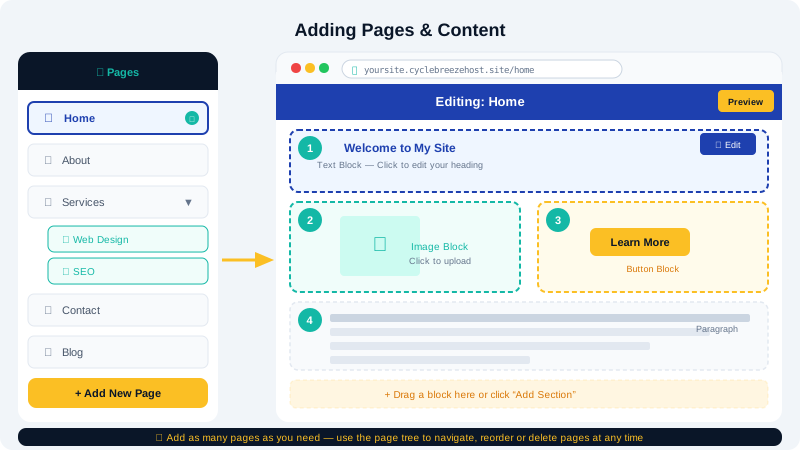
Understanding the Page Structure
Each page in the Website Builder is made up of sections stacked vertically. A section is a full-width row that contains a layout (columns, grids) and elements (text, images, buttons, forms, dividers). You build a page by adding sections and filling each one with elements.
Adding a New Page
- In the editor, open the Pages panel from the left sidebar (look for a pages icon or a Pages menu item).
- Click Add Page or the + button.
- Enter a name for the page (e.g.,
About,Services,Contact). The name is used in the navigation menu and as the page URL slug by default. - Choose a blank layout or pick from pre-designed page layouts that match common page types.
- Click Create or Add to open the new page in the editor.
Reordering and Managing Pages
In the Pages panel:
- Drag a page to reorder it in the navigation menu.
- Click the settings icon next to a page to rename it, change the URL slug, duplicate it, or delete it.
- Set as homepage by right-clicking a page and selecting Set as Home if you want a non-default page to be your root URL.
Adding Sections to a Page
- Hover between two existing sections on the canvas — a + button appears.
- Click + to open the Add Section panel.
- Browse pre-designed section layouts: hero, features, team, testimonials, gallery, pricing, FAQ, contact, footer, and more.
- Click a layout to insert it. A fully designed section appears, ready for you to replace placeholder content.
You can also add a blank section and build the layout yourself using columns.
Adding and Editing Text
- Click any text element to select it and start typing.
- Select text to reveal the formatting toolbar: Bold, Italic, underline, alignment, font size, text colour, and link.
- To add a new text element, drag a Text block from the Elements panel (in the left sidebar) onto the canvas.
- Use Heading elements (H1, H2, H3) for section titles and Paragraph elements for body copy. Consistent heading use also helps with SEO.
Adding Images
- Click an existing image placeholder and select Replace Image.
- To add a new image, drag an Image element from the Elements panel to the desired position on the canvas.
- Click Upload Image to use your own file, or browse the built-in stock photo library.
- In the right panel, set the image's alt text — a short description of what the image shows — which improves accessibility and search rankings.
Adding Buttons
- Drag a Button element onto the canvas, or click an existing button.
- Type the button label (e.g.,
Get a Quote,Learn More,Contact Us). - In the right panel, set the link type:
- Page — links to another page on your site.
- URL — links to an external website.
- Anchor — scrolls to a specific section on the same page.
- Email — opens a new email to a specified address.
- Choose a button style (filled, outlined, or text-only) and colour from the style options.
Organising Content with Columns
To place content side by side:
- Add a blank section.
- In the layout panel, select a 2-column or 3-column grid.
- Drag elements (text, images, icons) into each column independently.
Using Anchor Links for Navigation
If your home page is a single long-scrolling page with multiple sections, you can link navigation menu items directly to sections:
- Select a section and assign it an Anchor ID (e.g.,
services) in the section settings panel. - Create a navigation link and set its type to Anchor, then enter the anchor ID.
Previewing Your Pages
Click the Preview button in the top toolbar to see your site as a visitor would, without the editor overlay. Switch between Desktop, Tablet, and Mobile views to verify your layout adapts correctly on all screen sizes.
For help building out your pages, contact CyclebreezeHost support at info@cyclebreezehost.com — available 24/7.