An Overview of Imunify360 Protection
Every CyclebreezeHost shared and WordPress hosting account is protected by Imunify360, a comprehensive server-level security suite. Unlike a WordPress plugin that only monitors your application layer, Imunify360 operates at the server level — meaning it protects every site on your account regardless of what software you are running.
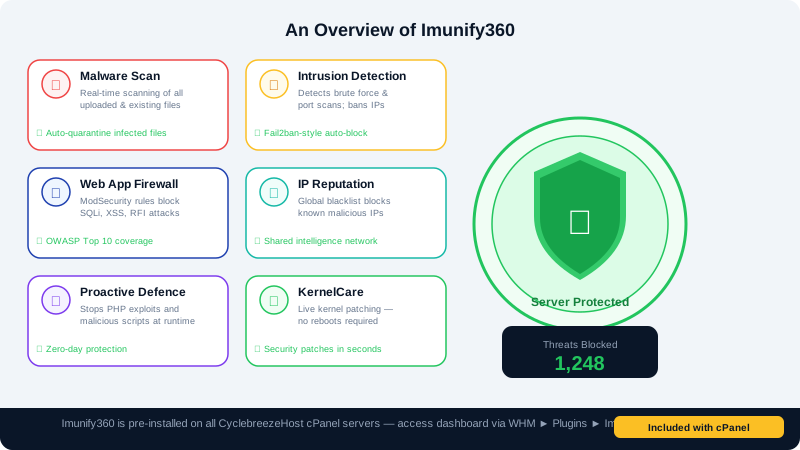
What Imunify360 Does
Imunify360 combines several security layers into a single continuously updated platform:
| Layer | What It Does |
|---|---|
| Web Application Firewall (WAF) | Blocks malicious HTTP requests before they reach your site — including SQL injection, cross-site scripting (XSS), and remote file inclusion attempts |
| Intrusion Detection & Prevention (IDS/IPS) | Monitors server traffic for attack patterns and automatically bans offending IPs |
| Malware Scanner | Continuously scans all files on your account for known malware signatures and suspicious code |
| Proactive Defence | Monitors PHP execution in real time and blocks malicious scripts even before their signatures are added to databases |
| Reputation Management | Checks your domain and IP against blocklists and alerts if your site has been flagged |
| Patch Management | Applies kernel-level security patches without requiring a server reboot |
What Happens When a Threat Is Detected
- Firewall block: Malicious requests are silently dropped before they touch your files.
- IP ban: IPs that exceed attack thresholds are automatically banned. Bans are shared across the server's collective threat intelligence network, so a known attacker from another site is blocked before it reaches yours.
- Malware alert: If infected files are found during a scan, CyclebreezeHost will notify you by email and, depending on severity, quarantine the affected files to prevent the malware from executing or spreading.
- Clean-up: For active infections, you can request a clean-up through your Client Area support ticket.
Viewing Your Security Status
You can view Imunify360 scan results and blocked threats from within cPanel:
- Log in to cPanel at
yourdomain.com/cpanel. - Scroll to the Security section and click Imunify360.
- The dashboard shows recent malware scan results, quarantined files, and any files that require your attention.
- You can review quarantined files and choose to clean, restore, or permanently delete them.
What Imunify360 Does Not Replace
Imunify360 provides strong server-level protection, but it works best alongside good account hygiene:
- Keep software updated. Outdated WordPress core, themes, and plugins are the most common entry point for infections. Always keep everything current.
- Use strong passwords. Imunify360 cannot protect against a compromised cPanel or WordPress login. Enable two-factor authentication (2FA) for both.
- Take regular backups. Security and backups are complementary, not alternatives. Use JetBackup in cPanel to schedule daily backups.
- Install a WordPress security plugin. Plugins like Wordfence or Solid Security add application-layer monitoring that complements Imunify360's server-layer protection.
False Positives
Occasionally, legitimate files may be flagged as suspicious — particularly custom PHP scripts or obfuscated theme code. If a file has been quarantined that you know is safe:
- Open Imunify360 in cPanel.
- Go to the Malware tab and find the quarantined file.
- Click Restore & Ignore to restore the file and add it to the ignore list.
If you are unsure whether a flagged file is legitimate, do not restore it without first opening a support ticket. Our team will investigate and advise.
Questions?
Contact our support team 24/7 via clients.cyclebreezehost.com or at info@cyclebreezehost.com.