Backing Up Your WordPress Site
A backup is your safety net. Whether you're about to install a major plugin, update PHP, or have simply been running your site for a while without one, a complete backup ensures you can recover quickly if anything goes wrong. CyclebreezeHost gives you two reliable ways to back up your WordPress site: through your cPanel account using JetBackup, or directly from within WordPress using a backup plugin.
Method 1: Use JetBackup in cPanel
JetBackup is pre-installed on all CyclebreezeHost hosting accounts and creates automatic server-side snapshots of your files and databases.
- Log in to your cPanel account at
yourdomain.com/cpanel. - Scroll to the JetBackup section and click JetBackup 5.
- To download a full account backup, click Full Backups in the left sidebar, then select the most recent snapshot and click Download.
- To back up just your database, click Database Backups, select the relevant database, and click Download.
- Store the downloaded files in a secure location such as cloud storage or an external drive.
JetBackup also lets you restore individual files, databases, or email accounts directly from the interface without needing to contact support.
Method 2: Use a WordPress Backup Plugin
For on-demand or scheduled backups you control from within WordPress:
- Log in to your WordPress dashboard at
yourdomain.com/wp-admin. - Go to Plugins > Add New and search for UpdraftPlus (free) or another backup plugin of your choice.
- Click Install Now, then Activate.
- Navigate to Settings > UpdraftPlus Backups.
- Under Settings, configure a remote storage destination such as Google Drive, Dropbox, or Amazon S3.
- Set your Files backup schedule and Database backup schedule (weekly is a sensible minimum; daily is recommended for active stores).
- Click Save Changes, then Backup Now to run your first manual backup.
What to Back Up
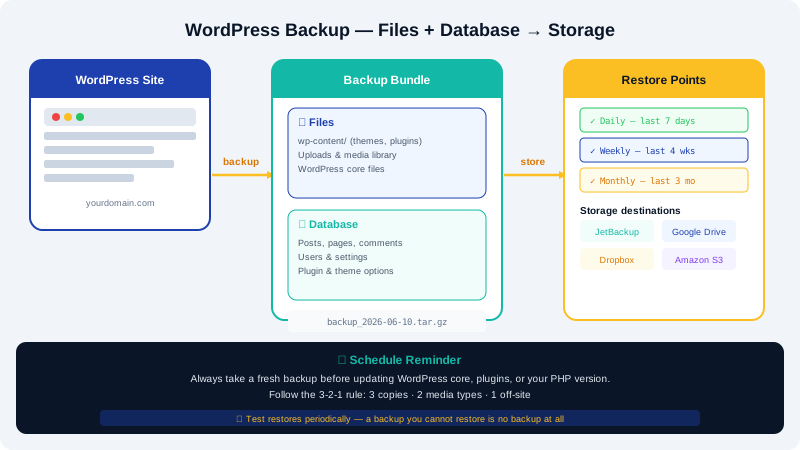
A complete WordPress backup includes two components:
| Component | What It Contains |
|---|---|
| Files | WordPress core, themes, plugins, and all uploads in /wp-content/ |
| Database | All posts, pages, settings, users, and plugin data |
Both are required for a full restore. A files-only backup cannot rebuild your content, and a database-only backup cannot rebuild your theme or media library.
Best Practices
- Follow the 3-2-1 rule: keep 3 copies, on 2 different media types, with 1 stored off-site.
- Always take a fresh backup before updating WordPress core, plugins, or your PHP version.
- Test your backups periodically by restoring to a staging environment.
- Keep at least 30 days of backup history for active sites.
Need Help?
If you're unsure which backup method is right for your plan, or if you need assistance restoring a backup, open a support ticket in your Client Area or email info@cyclebreezehost.com. Our team is available 24/7.