Backups and Restore Guide
CyclebreezeHost performs automated daily backups of all hosting accounts. This guide explains how backups work and how to restore your data when needed.
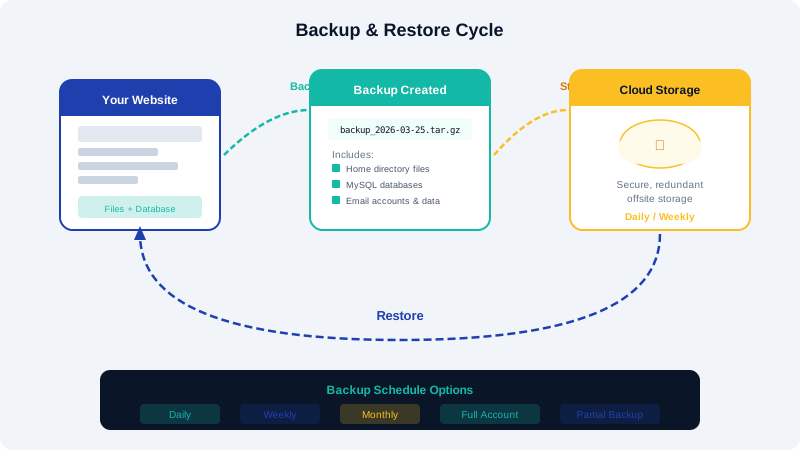
Automated Backups
We maintain daily backups with a 7-day retention period. These backups include your files, databases, email accounts, and cPanel settings.
Creating a Manual Backup
Full Account Backup
- Log into cPanel.
- Click Backup under the Files section.
- Click Download a Full Account Backup.
- Select the destination (Home Directory is recommended).
- Click Generate Backup.
- Once generated, download the backup file from the same page.
Partial Backups
You can also download individual components:
- Home Directory: All your website files.
- MySQL Databases: Individual database exports.
- Email Forwarders and Filters: Your email configuration.
Restoring from Backup
Restoring Files
- In cPanel, click Backup.
- Under Restore, click Choose File next to Home Directory.
- Select your backup archive and click Upload.
Restoring a Database
- In cPanel, click Backup.
- Under Restore, click Choose File next to MySQL Databases.
- Select the database backup file and click Upload.
Requesting a Full Restore
If you need to restore your entire account from our automated backups, open a support ticket specifying:
- The date you want to restore from.
- Whether you want a full restore or specific files/databases.
- Whether you want to restore in-place or to a temporary location for review.
Our support team will handle the restoration for you.
Best Practices
- Download a manual backup before making significant changes to your site.
- Keep at least one recent backup stored locally or in cloud storage separate from your hosting.
- Test your backups periodically by restoring to a staging environment.
- Use a WordPress backup plugin (like UpdraftPlus) in addition to server-level backups for extra protection.