Best Practices for Securing Your Hosting Account
Website security is a shared responsibility between the hosting provider and the account owner. While CyclebreezeHost protects the server infrastructure, you play a critical role in keeping your account and website safe. Following these best practices significantly reduces your risk of a security breach.
Use Strong, Unique Passwords
Every account associated with your hosting should have a strong, unique password. This includes your cPanel login, client area account, FTP accounts, database users, and CMS admin panels. A strong password is at least 12 characters long and includes a mix of uppercase letters, lowercase letters, numbers, and special characters.
Never reuse passwords across different services. Use a password manager such as Bitwarden or 1Password to generate and store complex passwords securely.
Enable Two-Factor Authentication
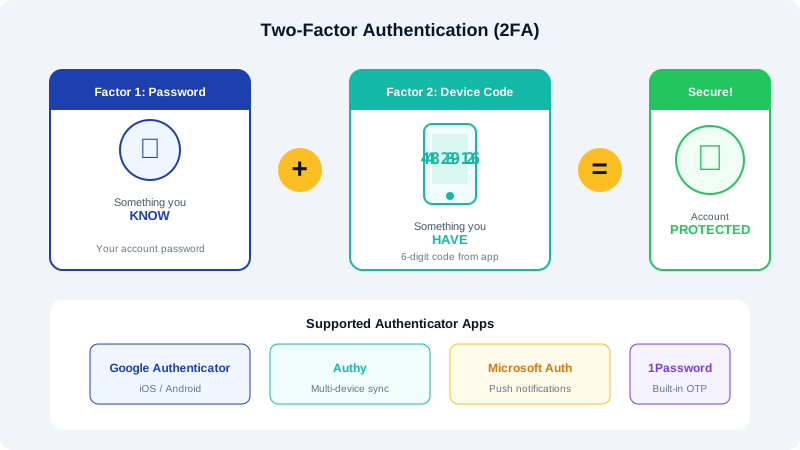
Activate 2FA on your cPanel account and CyclebreezeHost client area. Two-factor authentication requires a temporary code from your mobile device in addition to your password, making unauthorized access significantly harder. Refer to our dedicated guide on setting up two-factor authentication for step-by-step instructions.
Keep Your CMS and Plugins Updated
Outdated software is one of the leading causes of website compromises. If you use WordPress, Joomla, or any other content management system, apply updates as soon as they become available. This applies to the core CMS, themes, and all plugins or extensions.
- Enable automatic updates for minor releases where possible.
- Remove themes and plugins you are not actively using.
- Only install extensions from reputable sources.
Set Correct File Permissions
Incorrect file permissions can allow unauthorized users to read, modify, or execute your files. The recommended permissions for most hosting environments are:
- Files:
644(owner can read and write; group and others can read only) - Directories:
755(owner can read, write, and execute; group and others can read and execute) - Configuration files (such as
wp-config.php):600or640for added protection
You can check and change permissions in cPanel File Manager by right-clicking a file and selecting Change Permissions.
Disable Directory Listing
By default, if a directory does not contain an index file, Apache may display a listing of all files in that directory. This can expose sensitive files to anyone who visits the URL. To disable directory listing, add this line to your .htaccess file:
Options -Indexes
Restrict Access by IP Address
If you have a static IP address, you can restrict access to your cPanel, admin panel, or sensitive directories by adding IP-based rules to your .htaccess file:
<Files wp-login.php>
  Order Deny,Allow
  Deny from all
  Allow from 123.456.789.000
</Files>
Replace the IP address with your own. This blocks login attempts from all other addresses.
Monitor Access Logs
Regularly review your access and error logs to spot suspicious activity. In cPanel, navigate to Metrics > Raw Access to download your logs. Look for unusual patterns such as repeated failed login attempts, requests to non-existent pages, or traffic spikes from a single IP address.
Conduct Regular Security Audits
Schedule a monthly review of your hosting account security. During each audit, verify that all software is up to date, remove unused accounts or FTP users, check file permissions, review active cron jobs, and confirm that backups are running correctly.
Taking a proactive approach to security protects both your data and your visitors. If you have questions about any of these practices, our support team is here to help.