Blocking IP Addresses with IP Blocker
The IP Blocker tool in cPanel lets you deny access to your website from specific IP addresses or IP ranges. Use it to stop known bad actors, scrapers, brute-force bots, or any visitor you want to prevent from reaching your site.
When to Use IP Blocker
IP Blocker is useful in several situations:
- A specific IP address is repeatedly attempting to log in to your CMS or cPanel
- You are receiving spam form submissions from a known IP
- A bot or scraper is hammering your site and causing high resource usage
- Server logs reveal a single source making suspicious requests
If you are dealing with large volumes of automated traffic, blocking individual IPs can be time-consuming. In that case, consider combining IP Blocker with ModSecurity or contacting CyclebreezeHost support for assistance.
Finding the IP Address to Block
Before blocking, confirm the IP address you want to target:
- In cPanel, go to Metrics > Raw Access or Webalizer to review visitor IPs.
- For login attacks, check Metrics > Errors for repeated 401 or 403 entries.
- Your CMS security plugin (e.g., Wordfence for WordPress) may also show you attacker IP addresses.
- Note the full IP address (e.g.,
203.0.113.45) before proceeding.
Adding an IP Block
-
Log in to cPanel via https://clients.cyclebreezehost.com.
-
In the Security section, click IP Blocker.
-
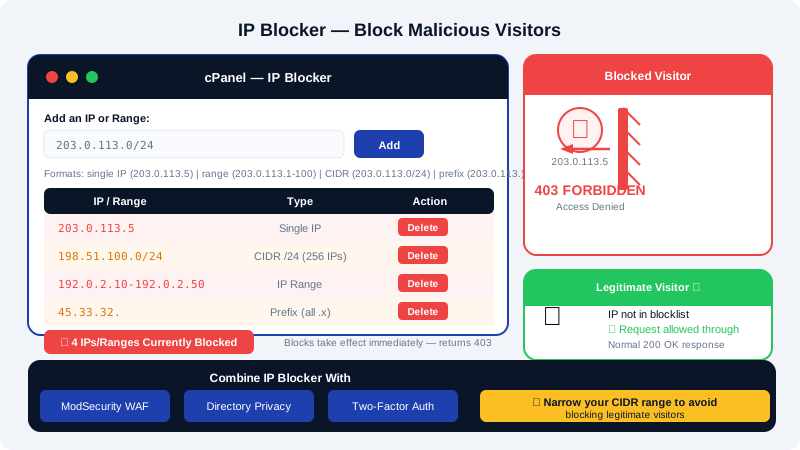
In the Add an IP or Range field, enter one of the following formats:
Format Example Blocks Single IP 203.0.113.45One specific address IP range (dash) 203.0.113.1-203.0.113.100All IPs in that range CIDR notation 203.0.113.0/24Entire subnet (256 addresses) Implied range 203.0.113.All addresses starting with that prefix -
Click Add. The block takes effect immediately — visitors from that IP will receive a
403 Forbiddenresponse.
Viewing and Removing Existing Blocks
- In cPanel, go to Security > IP Blocker.
- Scroll to the Currently-Blocked IP Addresses table.
- To remove a block, click Delete next to the entry you want to unblock.
Removing a block takes effect immediately. Review your block list periodically to remove outdated entries.
Blocking by Country (Alternative Approach)
The cPanel IP Blocker works on individual addresses and ranges, not entire countries. If you need to block traffic from specific countries, contact CyclebreezeHost support — our team can advise on firewall-level geo-blocking options for your account.
Limitations to Be Aware Of
- IP Blocker works at the web server level. It blocks HTTP/HTTPS traffic to your website but does not affect FTP, SSH (on VPS), or email.
- Determined attackers can rotate IP addresses, so IP blocking alone is not a complete security strategy.
- Blocking large CIDR ranges (e.g.,
/16) may inadvertently block legitimate visitors. Use the narrowest range that covers the threat. - For VPS and dedicated server customers, firewall rules at the OS level (using
ufworfirewalld) are more powerful. See the Managing Your Server Firewall article for details.
Combining IP Blocker with Other Tools
For stronger protection, use IP Blocker alongside:
- ModSecurity — blocks malicious request patterns regardless of source IP
- Directory Privacy — password-protects sensitive directories even if an IP is not yet known
- Two-factor authentication — prevents account takeovers even if a bot reaches the login page
If you need help identifying malicious IPs or setting up broader access controls, contact CyclebreezeHost support at info@cyclebreezehost.com or open a ticket at https://clients.cyclebreezehost.com. Our team is available 24/7.