How to Change Your Email Password
Keeping your email password strong and up to date protects your mailbox from unauthorised access. You can change an email account password in two ways: through cPanel (recommended for administrators managing multiple accounts) or through Roundcube webmail (ideal for individual users who manage their own mailbox). This guide covers both methods.
Method 1 — Change Password in cPanel
Use this method if you are the account owner or administrator and want to reset any mailbox on your hosting account.
- Log in to cPanel via the Client Area at https://clients.cyclebreezehost.com.
- In the Email section, click Email Accounts.
- Find the mailbox you want to update and click Manage on the right.
- Scroll down to the Security section.
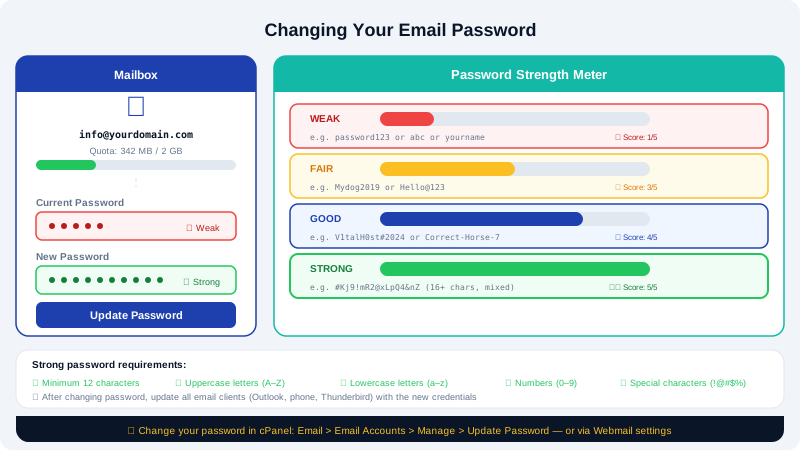
- In the New Password field, enter the new password, or click Generate to create a strong random password.
- The Password Strength meter will indicate how secure the password is. Aim for Strong or higher.
- Click Update Email Settings to save the change.
The new password is active immediately. Update your email client settings and any devices that connect to this mailbox.
Method 2 — Change Password in Roundcube Webmail
Use this method if you prefer to manage your own password without accessing cPanel.
- Open a browser and go to
https://mail.yourdomain.com(replaceyourdomain.comwith your actual domain). - Log in with your full email address (e.g.
you@yourdomain.com) and your current password. - In the top-right corner, click your name or the user icon, then select Settings.
- In the left sidebar, click Password.
- Enter your Current Password in the first field.
- Enter your New Password in the second field.
- Re-enter the new password in the Confirm New Password field.
- Click Save to apply the change.
Updating Your Email Client After a Password Change
After changing your password, you will need to update it in every email client or device that connects to this mailbox (desktop, phone, tablet).
For reference, CyclebreezeHost mail server settings are:
| Setting | Value |
|---|---|
| Incoming (IMAP) | mail.yourdomain.com, port 993, SSL/TLS |
| Incoming (POP3) | mail.yourdomain.com, port 995, SSL/TLS |
| Outgoing (SMTP) | mail.yourdomain.com, port 465 (SSL) or 587 (STARTTLS) |
| Username | Full email address |
Replace yourdomain.com with your actual domain name in all server fields.
Password Best Practices
- Use at least 12 characters combining uppercase letters, lowercase letters, numbers, and symbols.
- Avoid reusing passwords from other services.
- Never share your email password over chat, email, or phone.
- Change passwords immediately if you suspect unauthorised access.
Forgot Your Password?
If you have lost access to a mailbox and cannot log in to reset the password:
- Log in to cPanel as the hosting account owner.
- Follow Method 1 above to set a new password for the affected mailbox.
If you have also lost access to cPanel, contact the CyclebreezeHost support team to verify your identity and regain access.
Need Help?
Contact CyclebreezeHost support at info@cyclebreezehost.com or open a ticket in the Client Area — our team is available 24/7.