How to Change Your PHP Version
Different websites and applications require different versions of PHP. WordPress recommends PHP 8.1 or higher, while some older applications may still require PHP 7.4. CyclebreezeHost's cPanel includes the MultiPHP Manager tool, which lets you switch the PHP version for your entire account or for individual domains independently — without any server downtime.
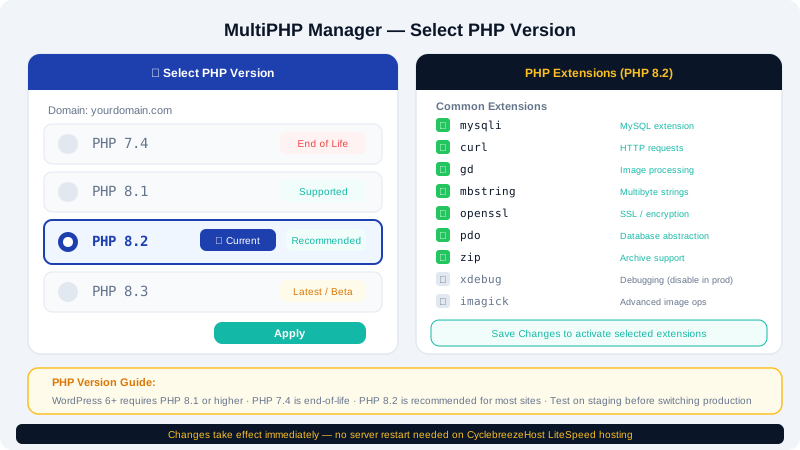
Checking Your Current PHP Version
Before making changes, it helps to know which version is currently active:
- Log in to the Client Area at https://clients.cyclebreezehost.com and open cPanel.
- In the Software section, click MultiPHP Manager.
- The table shows each of your domains alongside its current PHP version.
You can also create a file called phpinfo.php in your public_html folder containing <?php phpinfo(); ?> and visit it in your browser — it will display the active PHP version and all loaded extensions. Remember to delete this file afterward for security.
Changing the PHP Version
- In cPanel, open MultiPHP Manager.
- In the domain list, tick the checkbox next to the domain (or domains) you want to update.
- Use the PHP Version dropdown at the top of the page to select the version you need.
- Click Apply.
The change takes effect immediately — no restart or waiting required.
Available PHP Versions
CyclebreezeHost typically provides several PHP versions simultaneously so you can choose the right one for your application. Common options include PHP 7.4, 8.0, 8.1, 8.2, and 8.3. The full list of available versions appears in the MultiPHP Manager dropdown.
Recommended Versions by Application
| Application | Recommended PHP Version |
|---|---|
| WordPress 6.x | PHP 8.1 or 8.2 |
| WooCommerce | PHP 8.1 or 8.2 |
| Joomla 4.x | PHP 8.1 or 8.2 |
| Drupal 10 | PHP 8.1+ |
| Laravel 10/11 | PHP 8.2 or 8.3 |
| Older PHP apps | PHP 7.4 (only if required) |
Always check your application's official documentation for its current PHP requirements before switching.
Enabling and Disabling PHP Extensions
Some applications require specific PHP extensions to be active. You can manage extensions using the MultiPHP INI Editor or the Select PHP Version tool:
- In cPanel, go to Select PHP Version (sometimes listed as PHP Selector).
- Choose the PHP version you want to configure.
- You will see a list of available extensions with toggle switches. Enable the ones you need (for example,
intl,imagick,redis, orsoap). - Click Save to apply your changes.
Setting a Domain-Level vs. Account-Level PHP Version
By default, all domains on your account share the same PHP version. If you host multiple websites and need different PHP versions for each:
- Open MultiPHP Manager.
- Select only the specific domain you want to change.
- Choose the PHP version from the dropdown and click Apply.
The selected domain will now use its own version independently of your other domains.
Testing After a PHP Version Change
After switching PHP versions, test your site thoroughly:
- Visit your homepage and a few internal pages.
- Log in to your CMS admin dashboard.
- Check for any PHP errors or warnings. If your site shows a white screen or a 500 error, a PHP extension you rely on may not be available in the new version.
- Check the Error Logs in cPanel (under Metrics) for any PHP Fatal errors.
Rolling Back
If your site breaks after a PHP version change, you can roll back immediately by returning to MultiPHP Manager, selecting your domain, and choosing the previous version. The change is instant.
For further assistance choosing the right PHP version for your application, contact the CyclebreezeHost support team at info@cyclebreezehost.com or open a support ticket in the Client Area — support is available 24/7.