Connecting Email to Apple Mail and iPhone
You can add your CyclebreezeHost email account to the Apple Mail app on a Mac, and to the built-in Mail app on an iPhone or iPad. Both use the same server settings. IMAP is recommended so that your messages stay synchronised across all your Apple devices.
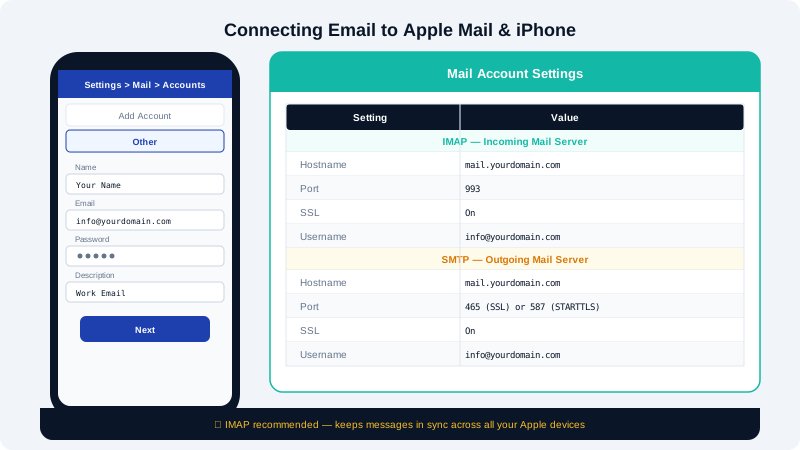
Your Mail Server Settings
Gather these details before you begin. For the exact values specific to your account, log in to cPanel, go to Email Accounts, and click Connect Devices next to your mailbox.
| Setting | Value |
|---|---|
| Incoming server (IMAP) | mail.yourdomain.com |
| IMAP port | 993 with SSL/TLS |
| Outgoing server (SMTP) | mail.yourdomain.com |
| SMTP port | 465 (SSL/TLS) or 587 (STARTTLS) |
| Username | Your full email address |
| Password | Your email account password |
Setting Up Apple Mail on macOS
- Open the Mail app.
- If this is your first account, a setup prompt appears automatically. Otherwise, go to Mail → Add Account in the menu bar.
- Select Other Mail Account… and click Continue.
- Enter your Name, full Email Address, and Password, then click Sign In.
- Mail will attempt auto-discovery. If it fails, a form appears — fill it in:
- Account Type: IMAP
- Incoming Mail Server:
mail.yourdomain.com - Outgoing Mail Server:
mail.yourdomain.com
- Click Sign In again. Mail tests the connection.
- If prompted about the server certificate, click Connect to accept it.
- Choose which apps (Mail, Notes) should use this account and click Done.
Verifying SMTP Settings on macOS
If outgoing mail fails after setup:
- In Mail, go to Mail → Preferences → Accounts.
- Select your account and click the Server Settings tab.
- Under Outgoing Mail Account, confirm the SMTP server is
mail.yourdomain.com, port465, with Use TLS/SSL enabled. - Ensure Authentication is set to Password and your full email address is the username.
Setting Up Mail on iPhone or iPad (iOS / iPadOS)
- Open Settings on your device.
- Scroll down and tap Mail → Accounts → Add Account.
- Tap Other, then tap Add Mail Account.
- Enter your Name, Email address, Password, and a Description (e.g., "Work Email"), then tap Next.
- Ensure IMAP is selected at the top.
- Under Incoming Mail Server:
- Host Name:
mail.yourdomain.com - User Name: your full email address
- Password: your email password
- Host Name:
- Under Outgoing Mail Server:
- Host Name:
mail.yourdomain.com - User Name: your full email address
- Password: your email password
- Host Name:
- Tap Next. iOS verifies the connection — this may take a few seconds.
- Tap Save.
Your mailbox will now appear in the Mail app and begin syncing.
Enabling SSL on iPhone
iOS should enable SSL automatically, but if you see certificate warnings or mail won't connect:
- Go to Settings → Mail → Accounts → select your account → Account → Advanced.
- Under Incoming Settings, set Use SSL to On and confirm the port is
993. - Under Outgoing Settings, set Use SSL to On and set the port to
465.
Troubleshooting
| Problem | Solution |
|---|---|
| "Cannot get mail" on iPhone | Check the host name has no trailing spaces |
| Certificate error | Tap Continue to accept the server certificate |
| Outgoing mail fails | Confirm SMTP password is entered — iOS sometimes omits it |
| Mail duplicates in inbox | This can happen if both IMAP and POP3 are configured; remove the POP3 account |
Contact CyclebreezeHost support at info@cyclebreezehost.com or visit https://clients.cyclebreezehost.com to open a ticket. Our team is available 24/7.