Connecting Your Email to Gmail
Gmail lets you add an external email account so you can read incoming mail and send messages from your CyclebreezeHost address, all inside the Gmail interface. This is handy if you want a single inbox without running a separate mail client.
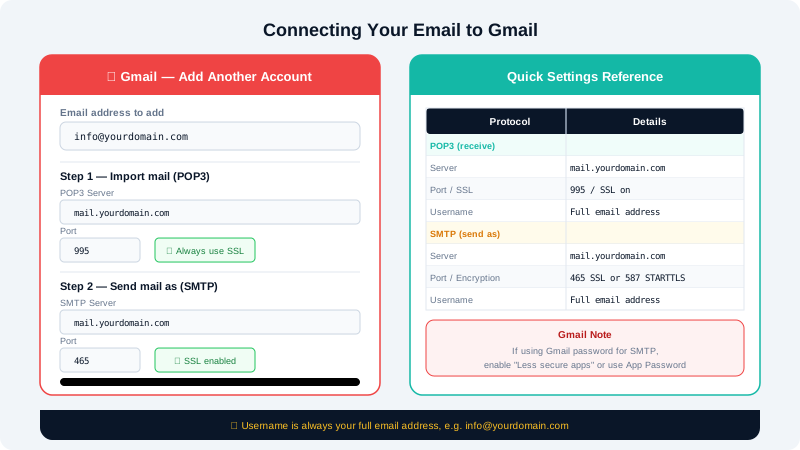
What You'll Need
- Your CyclebreezeHost email address and its password.
- The mail server details from cPanel (see below).
- A Gmail account already signed in at mail.google.com.
Step 1 — Get Your Mail Server Settings
- Log in to cPanel at
https://yourdomain.com:2083. - Click Email Accounts.
- Click Connect Devices next to the mailbox you want to link.
- Note the incoming (IMAP/POP3) and outgoing (SMTP) server details.
Standard values for CyclebreezeHost accounts:
| Setting | Value |
|---|---|
| Incoming server | mail.yourdomain.com |
| IMAP port | 993 (SSL/TLS) |
| POP3 port | 995 (SSL/TLS) |
| Outgoing (SMTP) server | mail.yourdomain.com |
| SMTP port | 465 (SSL/TLS) or 587 (STARTTLS) |
| Username | Your full email address |
Step 2 — Add the Account to Receive Mail
- In Gmail, click the Settings gear icon → See all settings.
- Open the Accounts and Import tab.
- Under Check mail from other accounts, click Add a mail account.
- Enter your full email address and click Next.
- Choose Import emails from my other account (POP3) and click Next.
- Fill in the form:
- Username: your full email address
- Password: your email password
- POP Server:
mail.yourdomain.com - Port:
995 - Tick Always use a secure connection (SSL)
- Optional: tick Leave a copy of retrieved message on the server if you also want mail accessible in webmail or other clients.
- Click Add Account.
Gmail will verify the credentials. A confirmation screen appears once the connection is successful.
Step 3 — Add the Account to Send Mail
After adding the incoming account, Gmail prompts you to also add a send-as address. This lets you compose mail that appears to come from your CyclebreezeHost address.
- When prompted, click Yes, I want to be able to send mail as… and click Next.
- Enter the name you want recipients to see, then click Next Step.
- Fill in the SMTP details:
- SMTP Server:
mail.yourdomain.com - Port:
465 - Username: your full email address
- Password: your email password
- Select Secured connection using SSL
- SMTP Server:
- Click Add Account.
- Gmail sends a confirmation code to your CyclebreezeHost mailbox. Retrieve it from Roundcube webmail (
https://mail.yourdomain.com), paste it into the Gmail prompt, and click Verify.
Sending From Your CyclebreezeHost Address
Once verified, when composing a new email in Gmail click the From field and choose your CyclebreezeHost address from the dropdown. Replies to email sent this way will go to your CyclebreezeHost mailbox.
Troubleshooting
| Problem | Solution |
|---|---|
| "Authentication failed" on POP3 | Check the username is the full email address |
| Gmail can't connect to SMTP | Try port 587 with TLS instead of port 465 |
| Confirmation email not received | Check Roundcube webmail; it may be in the Spam folder |
| Mail retrieval is slow | Gmail checks external POP accounts on its own schedule; expect up to 30-minute delays |
For additional help, contact CyclebreezeHost at info@cyclebreezehost.com or open a ticket at https://clients.cyclebreezehost.com. Our support team is available 24/7.