Connecting Your Email to Microsoft Outlook
You can add your CyclebreezeHost email account to Microsoft Outlook on Windows or macOS. IMAP is recommended because it keeps your messages synchronised across all devices. Use POP3 only if you want to download mail to one computer and remove it from the server.
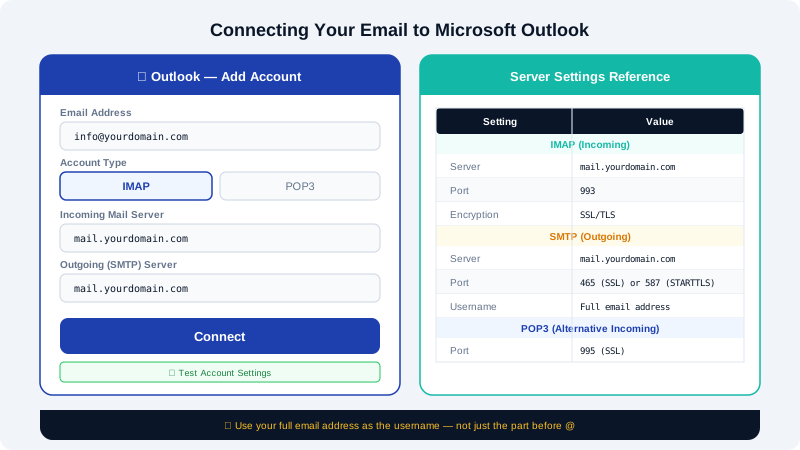
Find Your Mail Server Settings
Before adding the account, collect your settings from cPanel:
- Log in to cPanel at
https://yourdomain.com:2083. - Click Email Accounts.
- Click Connect Devices next to your mailbox.
- cPanel shows the exact incoming and outgoing server values for your account.
The standard CyclebreezeHost settings are:
| Setting | Value |
|---|---|
| Incoming server (IMAP) | mail.yourdomain.com |
| IMAP port | 993 with SSL/TLS |
| Incoming server (POP3) | mail.yourdomain.com |
| POP3 port | 995 with SSL/TLS |
| Outgoing server (SMTP) | mail.yourdomain.com |
| SMTP port | 465 (SSL/TLS) or 587 (STARTTLS) |
| Username | Your full email address |
| Password | Your email account password |
Adding the Account in Outlook (Microsoft 365 / Outlook 2019–2024)
- Open Outlook and click File → Add Account.
- Enter your full email address and click Connect.
- If Outlook auto-discovers the settings, enter your password and click Connect. You're done.
- If Outlook cannot auto-discover, select IMAP (or POP if preferred) when prompted.
- Enter the incoming server details:
- Server:
mail.yourdomain.com - Port:
993 - Encryption: SSL/TLS
- Server:
- Enter the outgoing server details:
- Server:
mail.yourdomain.com - Port:
465 - Encryption: SSL/TLS
- Server:
- Click Next, enter your password, and click Connect.
- Outlook will test the connection. If successful, click Done.
Adding the Account in Outlook for Mac
- Open Outlook, then go to Tools → Accounts.
- Click the + button and choose New Account.
- Enter your email address and click Continue.
- Select IMAP/SMTP if prompted to choose an account type.
- Fill in the incoming and outgoing server fields using the values in the table above.
- Enter your password and click Add Account.
Configuring SMTP Authentication
Outlook must authenticate to the outgoing server. If mail won't send:
- Go to File → Account Settings → Account Settings.
- Select your account and click Change.
- Click More Settings → Outgoing Server tab.
- Tick My outgoing server (SMTP) requires authentication.
- Select Use same settings as my incoming mail server.
- Click OK and then Next to re-test the connection.
Troubleshooting
| Problem | Solution |
|---|---|
| Cannot connect to server | Confirm the server name is mail.yourdomain.com with no typos |
| Certificate warning | Accept the certificate, or switch to SSL/TLS on port 465 |
| Authentication failure | Re-enter the full email address as the username |
| Sent mail not appearing in webmail | Set your Sent folder path to Sent in account settings |
If you need further help, contact CyclebreezeHost support at info@cyclebreezehost.com or open a ticket at https://clients.cyclebreezehost.com. Support is available 24/7.