How to Connect to Your VPS via SSH
SSH (Secure Shell) is the standard way to access the command line of your VPS or dedicated server. It creates an encrypted connection between your computer and the server, allowing you to run commands, manage files, and configure software remotely. This guide covers connecting from Windows, macOS, and Linux.
What You Need Before You Start
- Server IP address — visible in your CyclebreezeHost Client Area under the server details.
- Username — typically
rootfor a fresh server, or a custom user if you set one up. - Password or SSH key — the root password is emailed to you when the server is provisioned, or you may have set up an SSH key during ordering.
- SSH port — port
22by default. If you changed this for security, use your custom port.
Connecting from macOS or Linux
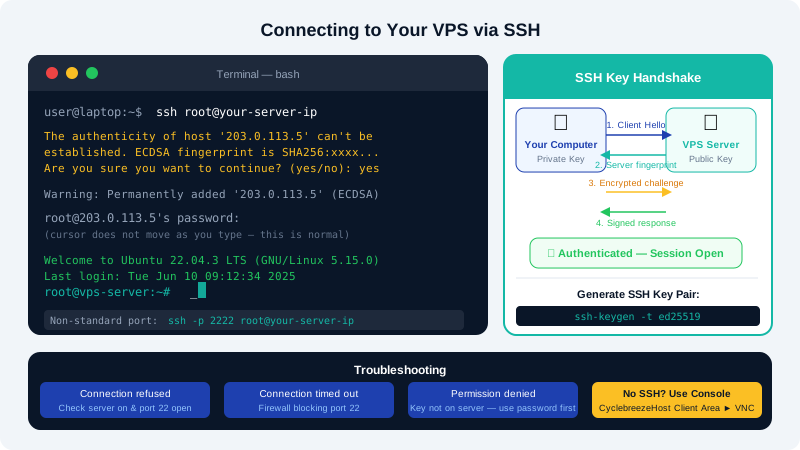
macOS and Linux include a built-in SSH client. Open a Terminal window and run:
ssh root@your-server-ip
Replace your-server-ip with your actual server IP address. If you use a non-standard port:
ssh -p 2222 root@your-server-ip
On first connection, you will see a message asking you to confirm the server's fingerprint. Type yes and press Enter. Enter your password when prompted — the cursor will not move as you type, which is normal.
Connecting from Windows
Windows 10 and 11 include a built-in OpenSSH client.
- Open Command Prompt or PowerShell.
- Run the same command as above:
ssh root@your-server-ip - Confirm the fingerprint and enter your password.
Using PuTTY (alternative for older Windows versions):
- Download PuTTY from the official site and open it.
- In the Host Name field, enter your server IP address.
- Ensure Port is set to
22and Connection type is SSH. - Click Open. Accept the fingerprint prompt, then enter your username and password.
Using SSH Keys Instead of a Password
SSH keys are more secure than passwords and eliminate the need to type a password each time you connect.
- Generate a key pair on your local machine:
ssh-keygen -t ed25519 -C "your-email@example.com" - Accept the default file location when prompted. Optionally set a passphrase.
- Copy your public key to the server:
ssh-copy-id root@your-server-ip - From now on, running
ssh root@your-server-ipwill connect without asking for a password.
Once SSH key authentication is working, consider disabling password authentication in /etc/ssh/sshd_config by setting PasswordAuthentication no — this closes off brute-force login attempts entirely.
Troubleshooting Connection Issues
| Problem | Likely Cause | Fix |
|---|---|---|
Connection refused | SSH not running, or wrong port | Check the server is powered on; verify port number |
Connection timed out | Firewall blocking port 22 | Allow port 22 in your server firewall and check security groups |
Permission denied (publickey) | Key not installed on server | Use password login first, then run ssh-copy-id |
Host key verification failed | Server was reinstalled | Run ssh-keygen -R your-server-ip to clear the old fingerprint |
Accessing the Server Console Without SSH
If SSH is unreachable (for example, after a firewall misconfiguration), you can access the server via the VNC/Console feature in your CyclebreezeHost Client Area:
- Log in at https://clients.cyclebreezehost.com.
- Navigate to your server and click Server Control Panel.
- Launch the Console or VNC session to get direct access regardless of network settings.
For further help connecting to your server, contact CyclebreezeHost support at info@cyclebreezehost.com or open a ticket at https://clients.cyclebreezehost.com. Our team is available 24/7.