Connecting Your App to a Database
Most dynamic web applications need persistent storage. CyclebreezeHost Application Hosting lets you create MySQL databases through cPanel and connect them to your Node.js or Python application running on the same account. This article walks you through creating a database, setting up a user, and writing the connection code for each platform.
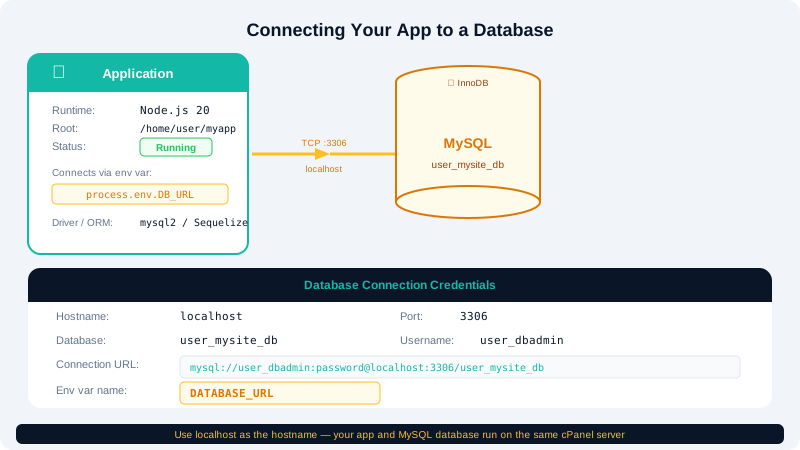
Step 1 — Create a MySQL Database
- Log in to cPanel and open MySQL Databases under the Databases section.
- Under Create New Database, enter a name (e.g.,
myapp_db) and click Create Database. - Under MySQL Users — Add New User, enter a username and a strong password, then click Create User.
- Under Add User to Database, select your new user and database, click Add, then grant All Privileges and click Make Changes.
Note your database name, username, and password — you will need them for your connection string.
Step 2 — Find Your Database Hostname
MySQL on cPanel is almost always available at localhost. Use localhost as the host in your connection string. The default port is 3306.
To verify, open phpMyAdmin from cPanel — the server and port are shown on the home screen.
Step 3 — Store Credentials as Environment Variables
Never hardcode database credentials in your source code. Add them as environment variables in the Setup Node.js App or Setup Python App tool (see Managing Application Environment Variables for instructions):
| Variable | Example Value |
|---|---|
DB_HOST | localhost |
DB_PORT | 3306 |
DB_NAME | yourusername_myapp_db |
DB_USER | yourusername_dbuser |
DB_PASS | your-strong-password |
cPanel prefixes database names and usernames with your account username automatically — confirm the exact names in MySQL Databases.
Step 4 — Connect from Node.js
Install the mysql2 package (recommended for its Promise support and performance):
npm install mysql2
Then create a connection pool in your application:
const mysql = require('mysql2/promise');

const pool = mysql.createPool({
  host: process.env.DB_HOST,
  port: process.env.DB_PORT || 3306,
  database: process.env.DB_NAME,
  user: process.env.DB_USER,
  password: process.env.DB_PASS,
  waitForConnections: true,
  connectionLimit: 10,
});

module.exports = pool;
Use the pool in your route handlers:
const pool = require('./db');

app.get('/users', async (req, res) => {
  const [rows] = await pool.query('SELECT * FROM users');
  res.json(rows);
});
Step 5 — Connect from Python
Install PyMySQL or mysqlclient (for Django ORM) via pip after activating your virtual environment:
pip install PyMySQL
For a Flask application using raw queries:
import pymysql
import os

connection = pymysql.connect(
    host=os.environ.get("DB_HOST"),
    port=int(os.environ.get("DB_PORT", 3306)),
    db=os.environ.get("DB_NAME"),
    user=os.environ.get("DB_USER"),
    password=os.environ.get("DB_PASS"),
    cursorclass=pymysql.cursors.DictCursor,
)
For Django, update your settings.py DATABASES section:
DATABASES = {
    'default': {
        'ENGINE': 'django.db.backends.mysql',
        'NAME': os.environ.get('DB_NAME'),
        'USER': os.environ.get('DB_USER'),
        'PASSWORD': os.environ.get('DB_PASS'),
        'HOST': os.environ.get('DB_HOST', 'localhost'),
        'PORT': os.environ.get('DB_PORT', '3306'),
    }
}
Common Issues
| Problem | Likely Cause | Fix |
|---|---|---|
Access denied for user | Wrong username or password | Double-check cPanel MySQL Users |
Unknown database | Wrong database name | Confirm the full prefixed name in cPanel |
Connection refused | Wrong host or port | Use localhost and port 3306 |
Too many connections | No connection pooling | Use a pool (Node: mysql2/promise; Python: SQLAlchemy pool) |
For further help, contact CyclebreezeHost support at info@cyclebreezehost.com or open a ticket at https://clients.cyclebreezehost.com — available 24/7.