Connecting Your Domain to Your Site
Once your Website Builder site is ready, you need to connect it to a real domain so visitors can find it at an address like www.yourbusiness.com. This article covers how to link a domain registered or hosted with CyclebreezeHost to your Website Builder site.
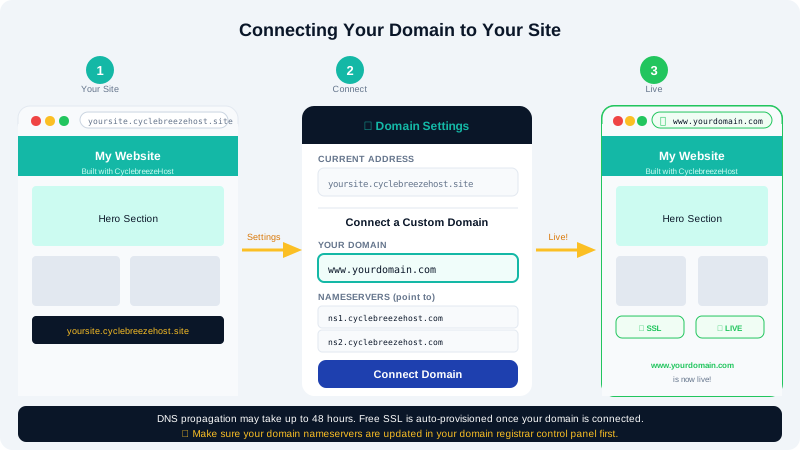
Types of Domain Connection
There are two common scenarios:
| Scenario | What to do |
|---|---|
| Domain registered and hosted with CyclebreezeHost | Assign the domain in the Website Builder — DNS is already pointing to your hosting |
| Domain registered elsewhere | Update DNS records at the external registrar to point to CyclebreezeHost, then assign the domain |
Scenario 1 — Domain Already with CyclebreezeHost
If your domain is registered with CyclebreezeHost and its nameservers already point to your CyclebreezeHost hosting account, connecting it to your Website Builder site takes a few clicks:
- Open the Website Builder from cPanel or the Client Area.
- In the editor, click Site Settings or Domain from the top toolbar or left sidebar.
- Select Connect Domain.
- Choose your domain from the list of domains on your cPanel account (e.g.,
yourdomain.comorwww.yourdomain.com). - Click Connect or Save.
The builder site will now serve traffic for that domain. DNS propagation has already happened since the domain points to your hosting, so the connection is typically instant.
Scenario 2 — Domain Registered Elsewhere
If your domain is managed at another registrar (e.g., AFRINIC, GoDaddy, Namecheap), you need to update its DNS records to point to CyclebreezeHost before connecting.
Option A — Change Nameservers (Recommended)
Changing nameservers transfers full DNS control to CyclebreezeHost, making future DNS changes easier to manage from one place.
- Log in to your external registrar's control panel.
- Find the Nameservers setting for your domain.
- Replace the current nameservers with CyclebreezeHost's nameservers (find these in the Client Area under your hosting product details or contact support at info@cyclebreezehost.com to confirm them).
- Save the change. Nameserver propagation can take 24–48 hours.
- Once propagation is complete, return to the Website Builder and follow the Scenario 1 steps above.
Option B — Add a CNAME Record
If you prefer to keep DNS management at your current registrar, you can point just the www subdomain to your Website Builder site:
- In the Website Builder, go to Site Settings → Domain and look for the CNAME target or custom domain instructions. Note the target hostname shown (e.g.,
sites.cyclebreezehost.comor similar). - Log in to your external registrar and open the DNS management panel.
- Add or update a CNAME record:
- Host / Name:
www - Points to / Value: the target hostname from step 1
- TTL: 3600 (or your registrar's default)
- Host / Name:
- For the root domain (
yourdomain.comwithoutwww), add an A record pointing to your hosting account's IP address (find this in cPanel under Server Information or contact CyclebreezeHost support). - DNS changes typically propagate within 1–4 hours but may take up to 24 hours.
Verifying the Connection
After connecting your domain:
- Open an incognito or private browser window.
- Navigate to
https://www.yourdomain.com. - Your Website Builder site should load.
If you see a hosting placeholder page instead of your site, the domain may still be propagating, or the domain was not correctly assigned in the builder. Wait an hour and check again.
Setting Up HTTPS (SSL)
CyclebreezeHost provides free SSL certificates for all hosted domains. Once your domain is connected and DNS has propagated:
- In cPanel, open SSL/TLS or AutoSSL.
- Run AutoSSL to issue and install a certificate for your domain automatically.
- In the Website Builder's Site Settings, enable Force HTTPS or Redirect to HTTPS if the option is available, ensuring all visitors use a secure connection.
Need Help?
Domain DNS configuration can take time to take effect. If your site is not showing after 24 hours, contact CyclebreezeHost support at info@cyclebreezehost.com or open a ticket at https://clients.cyclebreezehost.com — support is available 24/7.