Controlling Directory Indexing
When a visitor requests a URL that points to a folder on your server and that folder contains no index.html, index.php, or other default file, the web server must decide what to do. If directory indexing is enabled, it shows a plain list of all files in that folder. If indexing is disabled, it returns a 403 Forbidden error instead. Understanding and controlling this behaviour lets you protect sensitive files and decide exactly what visitors can see.
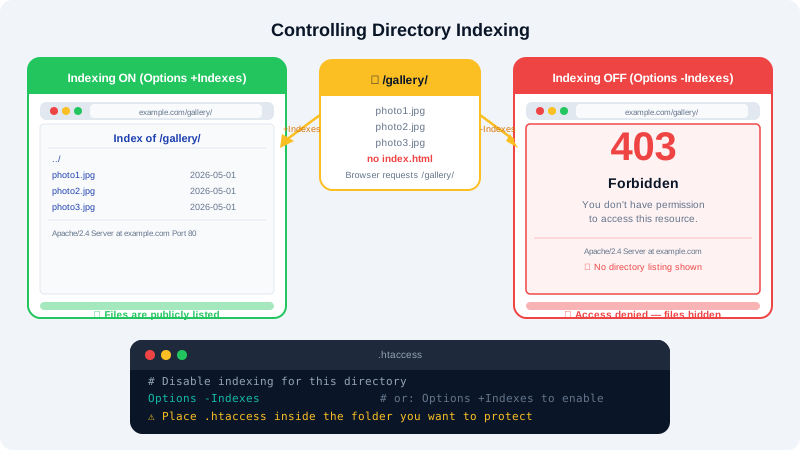
Why Directory Indexing Matters
An exposed directory listing can reveal:
- Backup files (
.zip,.sql,.bak) that should never be publicly accessible - Configuration files accidentally placed in a web-accessible path
- The internal structure of your application
- Uploaded files that are not yet intended for public consumption
For most websites, directory indexing should be disabled everywhere except folders where you deliberately want a file browser (such as a public download archive).
Checking the Current State
Visit a folder URL that you know has no index file — for example https://yourdomain.com/uploads/. If you see a list of filenames, indexing is on for that directory. If you see a 403 Forbidden page, it is already off.
Disabling Directory Indexing via cPanel
cPanel provides a graphical tool for toggling indexing per directory.
- Log in to cPanel at
clients.cyclebreezehost.com. - Go to Advanced → Indexes.
- Use the folder tree to navigate to the directory you want to control.
- Click the directory name to open its settings.
- Select one of the four options:
| Option | Behaviour |
|---|---|
| Default System Setting | Inherits the server-wide setting |
| No Indexing | Returns 403 if no index file is present |
| Standard Indexing | Shows a plain filename list |
| Fancy Indexing | Shows a list with icons, file sizes, and dates |
- Choose No Indexing to block directory listings.
- Click Save.
Disabling Directory Indexing via .htaccess
For more granular control — or if you prefer to keep the configuration in your project files — add directives directly to .htaccess.
Disable indexing for a specific directory
Place a .htaccess file inside the target directory (or edit the existing one) and add:
Options -Indexes
Disable indexing site-wide
Edit the .htaccess file in your public_html root:
Options -Indexes
This setting propagates to all subdirectories unless overridden by a .htaccess file deeper in the tree.
Enable indexing for one subdirectory only
To allow a listing in a specific folder while keeping indexing off everywhere else, place a .htaccess file inside that folder containing:
Options +Indexes
Blocking Access to Specific File Types
Disabling indexing prevents the directory listing but does not stop direct file access if someone guesses a filename. To block direct requests to sensitive file types, add a rule to .htaccess:
<FilesMatch "\.(sql|bak|log|env|zip)$">
    Order allow,deny
    Deny from all
</FilesMatch>
This returns 403 Forbidden for any request to files with those extensions, regardless of whether indexing is on or off.
Verifying Your Changes
- Open File Manager in cPanel and confirm the
.htaccessfile in the relevant directory containsOptions -Indexes. - Visit the directory URL in a browser. You should now see a
403 Forbiddenpage rather than a file listing. - Confirm your actual website pages still load normally — the
Options -Indexesdirective does not affect pages served via an index file.
Common Scenarios
- WordPress uploads folder exposed: Add
Options -Indexestopublic_html/wp-content/uploads/.htaccess. WordPress already creates this file with some rules; just append the line. - Public download section: Set Fancy Indexing via cPanel's Indexes tool on a single
/downloads/folder so users can browse available files. - After a migration: Newly transferred sites sometimes lack a root
index.phptemporarily. Disable indexing first to avoid exposing the file tree while the migration completes.
If you need help configuring access controls or have found an exposed directory on your CyclebreezeHost account, contact support at info@cyclebreezehost.com. The team is available 24/7.