Creating Email Filters and Rules
Email filters let you automatically act on incoming messages based on criteria such as sender, subject, or keywords. You can use filters to sort mail into folders, forward messages to another address, delete spam, or trigger custom actions. CyclebreezeHost email is powered by cPanel, which provides two levels of filtering: account-level filters (apply to one mailbox) and global filters (apply to all mailboxes on a domain).
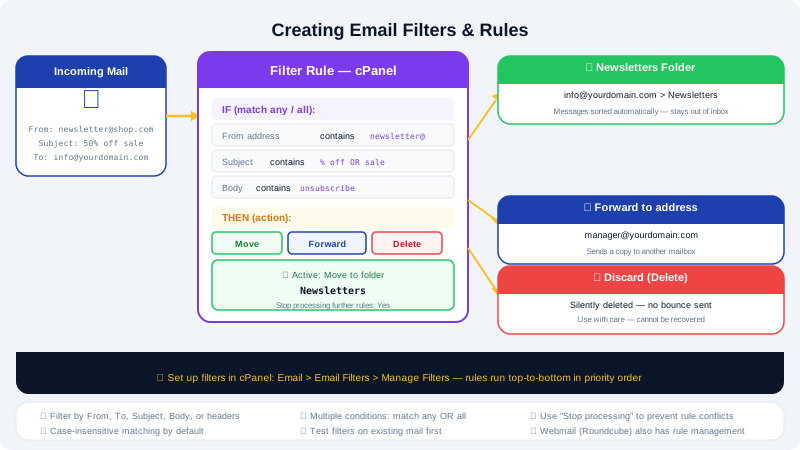
Account-Level Filters
Account-level filters apply rules to a single mailbox. Use these for personal sorting preferences.
Creating an Account-Level Filter
- Log in to cPanel via the Client Area at https://clients.cyclebreezehost.com.
- In the Email section, click Email Filters.
- Next to the mailbox you want to filter, click Manage Filters.
- Click Create a New Filter.
- Give the filter a descriptive Filter Name.
Setting Filter Conditions
Under Rules, configure what triggers the filter:
- Field — choose from
From,Subject,To,Reply-To,Body,Any Header,Has not been previously delivered, and others. - Condition — options include
contains,does not contain,begins with,ends with,is equal to,matches regex. - Value — enter the text to match.
Click + to add multiple conditions. You can combine them with and (all conditions must match) or or (any condition triggers the filter).
Setting Filter Actions
Under Actions, choose what happens when the conditions are met:
| Action | Description |
|---|---|
| Deliver to folder | Move the message to a specific mailbox folder |
| Redirect to email | Forward a copy to another email address |
| Fail with message | Reject the message and return an error to the sender |
| Delete | Permanently delete the message without delivery |
| Stop processing rules | Prevent subsequent filters from running |
| Pipe to program | Pass the message to a script (advanced) |
- Select an action and fill in any required details (e.g. the destination folder or forwarding address).
- Click Create to save the filter.
Global Email Filters
Global filters apply to all incoming mail for a domain before individual account filters run. These are useful for domain-wide spam blocking or catch-all routing.
- In cPanel, go to Email and click Global Email Filters.
- Click Create a New Filter.
- Follow the same steps as account-level filters above.
- Click Create to save.
Be cautious with global delete rules — a misconfigured filter can silently discard legitimate mail for all accounts on the domain.
Example: Auto-Forwarding a Mailing List to a Folder
Scenario: You subscribe to a newsletter sent from newsletter@example.com and want it moved to a Newsletters folder automatically.
- Create an account-level filter.
- Rule:
From→is equal to→newsletter@example.com - Action:
Deliver to folder→ select or typeNewsletters - Click Create.
Testing a Filter
After creating a filter, send a test message that matches the conditions and verify it is handled as expected. Filters apply only to new incoming messages — they do not retroactively process existing mail in your inbox.
Editing or Deleting a Filter
- Go to Email Filters in cPanel and click Manage Filters for the mailbox.
- Click Edit to modify an existing filter, or Delete to remove it.
Filter order matters — if multiple filters match the same message, they run from top to bottom. Drag filters to reorder them.
Need Help?
Contact CyclebreezeHost support at info@cyclebreezehost.com or open a ticket in the Client Area — our team is available 24/7.