Creating Hosting Packages in WHM
Hosting packages (also called plans or packages) are templates that define the resource limits and features applied to a cPanel account when you create it. Before you add your first client, you should create at least one package so you can assign it consistently. This article walks you through creating and managing packages in WHM.
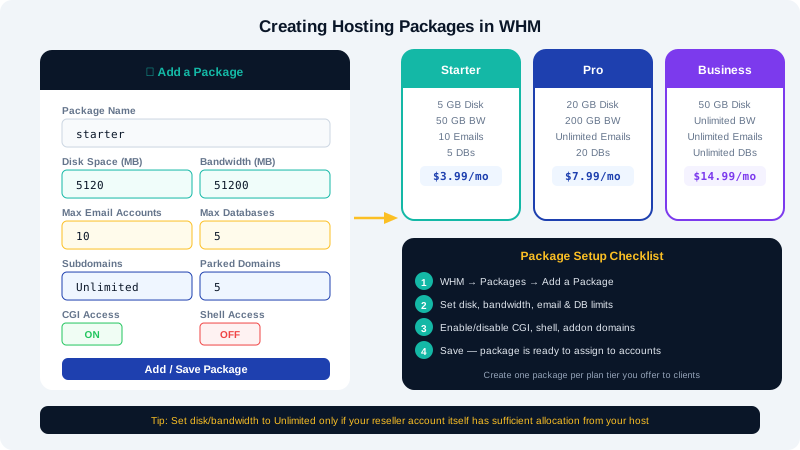
Why Packages Matter
Instead of manually specifying disk space, bandwidth, and email limits every time you create an account, you define those settings once in a package and then select that package by name. This keeps your offerings consistent and makes it easy to upgrade a client by moving them to a higher-tier package.
Creating a New Package
- Log in to WHM at
https://yourserver:2087. - In the left-hand search bar, type
Add a Packageand click the result, or navigate to Packages > Add a Package. - Enter a descriptive Package Name — for example,
Starter,Business, orPro. Package names cannot contain spaces; use hyphens or underscores instead (e.g.,starter-plan). - Configure the resource limits as described below.
- Click Add to save the package.
Resource Limit Fields Explained
| Field | What It Controls | Tip |
|---|---|---|
| Disk Space (MB) | Maximum storage for all files, email, and databases | Set 0 for unlimited (uses your reseller quota) |
| Monthly Bandwidth (MB) | Data transfer per billing cycle | Set 0 for unlimited |
| Max FTP Accounts | Number of FTP users the client can create | 0 = unlimited |
| Max Email Accounts | Total email addresses allowed | 0 = unlimited |
| Max Mailing Lists | Number of mailing lists | 0 = unlimited |
| Max SQL Databases | MySQL/MariaDB databases allowed | 0 = unlimited |
| Max Sub Domains | Subdomains the client can add | 0 = unlimited |
| Max Parked Domains | Aliases pointing to the main domain | 0 = unlimited |
| Max Addon Domains | Separate domains hosted on the same account | 0 = unlimited |
Important: Setting
0means unlimited relative to your reseller allocation. If your reseller plan has a 50 GB total disk limit and you set all packages to unlimited, your clients share that 50 GB pool. Plan accordingly.
Feature Lists
Below the resource limits you will see a Feature List selector. Feature lists control which tools and sections appear inside your clients' cPanel. WHM ships with a default feature list.
To customise what your clients can see:
- Navigate to Packages > Feature Manager in WHM.
- Create a named feature list and toggle individual features on or off.
- Return to your package and select that feature list from the dropdown.
Common features you may want to disable for entry-level plans include Softaculous (if you want to upsell it), cron jobs, and advanced DNS tools.
Editing an Existing Package
- In WHM, go to Packages > Edit a Package.
- Select the package name from the dropdown and click Edit.
- Modify any fields and click Save Changes.
Editing a package updates the limits for all accounts currently assigned to that package — useful for applying across-the-board upgrades.
Deleting a Package
- Go to Packages > Delete a Package.
- Select the package and confirm deletion.
You cannot delete a package while accounts are assigned to it. Move those accounts to another package first using Account Functions > Modify an Account.
Recommended Package Structure
A simple three-tier structure works well for most resellers starting out:
| Package Name | Disk | Bandwidth | Email Accounts | Addon Domains |
|---|---|---|---|---|
starter | 2048 MB | 10240 MB | 10 | 1 |
business | 10240 MB | 51200 MB | 50 | 5 |
pro | 0 (unlimited) | 0 (unlimited) | 0 (unlimited) | 0 (unlimited) |
Adjust the values to match the pricing and margins of your own offering.
For help designing your package structure or troubleshooting WHM, contact CyclebreezeHost support 24/7 at info@cyclebreezehost.com.