Deploying a Node.js App in cPanel
CyclebreezeHost provides the Setup Node.js App tool in cPanel to deploy and manage Node.js applications without touching the command line for server configuration. Powered by Phusion Passenger, the tool handles process management so you can focus on your code.
Before You Begin
Make sure you have:
- Your Node.js project files ready, with a valid
package.jsonin the project root. - An entry point file — typically
app.js,server.js, orindex.js— that callsapp.listen()or equivalent. - The files uploaded to your cPanel home directory (e.g.,
~/mynodeapp) via File Manager or FTP/SFTP.
Your app must listen on the port provided by the PORT environment variable, or use the Passenger socket. A common pattern:
const port = process.env.PORT || 3000;
app.listen(port);
Step 1 — Open Setup Node.js App
- Log in to cPanel at your hosting control panel URL.
- Scroll to the Software section and click Setup Node.js App.
- Click Create Application.
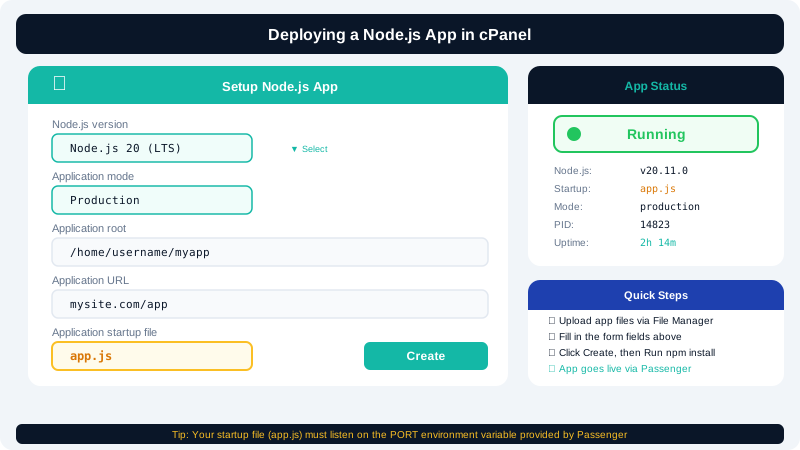
Step 2 — Configure the Application
Fill in the configuration form:
| Field | What to enter |
|---|---|
| Node.js version | Select the version your app requires (e.g., 20.x) |
| Application mode | Production for live sites; Development for debugging |
| Application root | The folder containing your code, e.g., mynodeapp |
| Application URL | The domain or subdomain that should serve the app |
| Application startup file | Your entry point, e.g., app.js |
Click Create to save.
Step 3 — Install Dependencies
After the application is created, the tool displays a command in the Run NPM Install section. Click that button (or copy the shown command into cPanel's Terminal) to install packages from your package.json:
npm install --production
All packages are installed into the app's isolated virtual environment and do not affect other applications on the account.
Step 4 — Set Environment Variables
Scroll to the Environment Variables section within your app's configuration. Add any variables your app needs — for example:
NODE_ENV→productionDATABASE_URL→ your MySQL connection stringSECRET_KEY→ your session or JWT secret
Click Save after adding variables. See the Managing Application Environment Variables article for more detail.
Step 5 — Start the Application
Click Start at the top of the application configuration page. Passenger will launch your Node.js process and begin routing requests from your application URL to it.
Visit the URL you configured to confirm the app is running. You should see your application's response in the browser.
Redeploying After Code Changes
When you push updated code files to the server:
- Navigate back to Setup Node.js App.
- Click the Restart button next to your application.
Passenger will reload the process with your latest code. If you added new packages to package.json, run NPM Install again before restarting.
Troubleshooting
If the app does not load after starting, check the application log listed in the tool for error output. The Troubleshooting Application Startup Errors article covers the most common issues. You can also reach CyclebreezeHost support 24/7 at info@cyclebreezehost.com.