Deploying a Python App in cPanel
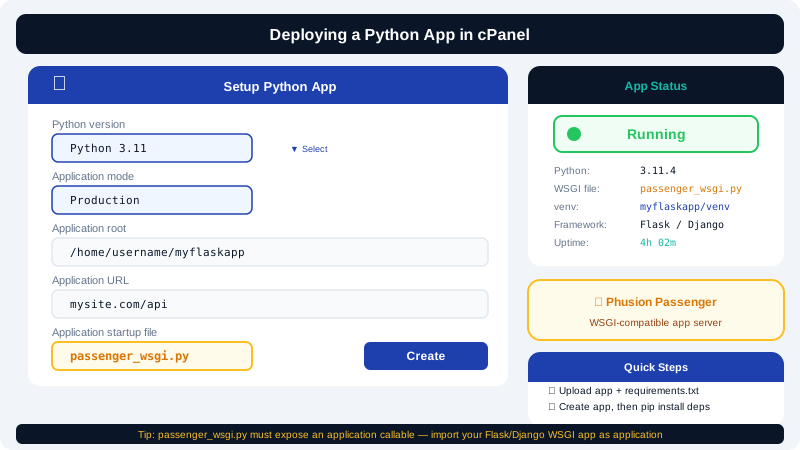
CyclebreezeHost Application Hosting lets you deploy Python web applications using the Setup Python App tool in cPanel. Phusion Passenger acts as the application server, managing your Python process and routing HTTP traffic to it — no manual WSGI server setup required.
Supported Frameworks
Any Python web framework that exposes a WSGI-compatible application object works with Passenger. Common examples include:
- Flask — lightweight, suitable for APIs and small apps
- Django — full-featured framework for larger projects
- FastAPI — modern async framework (via WSGI adapter)
Before You Begin
Prepare the following before creating the application in cPanel:
- A Python project uploaded to your home directory (e.g.,
~/mypyapp) via File Manager or FTP/SFTP. - A
requirements.txtfile in the project root listing all dependencies. - A WSGI entry point file. Passenger looks for an object named
applicationby default:
# passenger_wsgi.py
from myapp import create_app
application = create_app()
For Django, you can point to myproject/wsgi.py which already exports application.
Step 1 — Open Setup Python App
- Log in to cPanel.
- Go to the Software section and click Setup Python App.
- Click Create Application.
Step 2 — Configure the Application
| Field | What to enter |
|---|---|
| Python version | Select the version your project requires (e.g., 3.11) |
| Application root | The directory containing your code, e.g., mypyapp |
| Application URL | The domain or subdomain to serve the app on |
| Application startup file | Your WSGI entry point, e.g., passenger_wsgi.py |
Click Create to save the configuration.
Step 3 — Install Dependencies
Once the application is created, the tool shows a virtual environment path and an Enter to virtual environment command. Copy and run that command in cPanel's Terminal, then install your packages:
source /home/yourusername/virtualenv/mypyapp/3.11/bin/activate
pip install -r requirements.txt
Alternatively, click Run Pip Install in the tool's interface if it appears, which runs pip install -r requirements.txt automatically.
Step 4 — Set Environment Variables
In the Environment Variables section of your app configuration, add the variables your application needs:
DJANGO_SETTINGS_MODULE→myproject.settingsDATABASE_URL→ your MySQL connection stringSECRET_KEY→ your application's secret keyDEBUG→Falsefor production
Click Save after adding each variable.
Step 5 — Run Database Migrations (if applicable)
For Django applications, activate the virtual environment in cPanel's Terminal and run:
python manage.py migrate
python manage.py collectstatic --noinput
Step 6 — Start the Application
Click Start in the application configuration. Passenger will launch your Python WSGI process. Visit your configured URL to verify the app is responding correctly.
Redeploying After Changes
After uploading updated code files:
- Open Setup Python App in cPanel.
- Click Restart next to your application.
If your requirements.txt changed, activate the virtual environment and run pip install -r requirements.txt before restarting.
Getting Help
If your app fails to start, consult the Troubleshooting Application Startup Errors article. CyclebreezeHost support is available 24/7 at info@cyclebreezehost.com or via a ticket in the Client Area at https://clients.cyclebreezehost.com.