How to Enable Hotlink Protection
Hotlinking happens when another website embeds your images, videos, or other files directly from your server instead of hosting them locally. Every time a visitor loads that third-party page, your server delivers the file and your bandwidth quota takes the hit. Hotlink protection blocks these external requests while still serving files to legitimate visitors on your own domain.
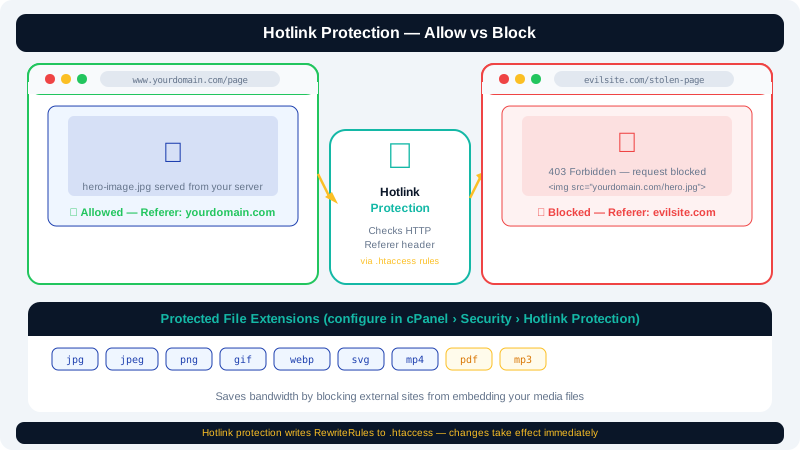
How Hotlink Protection Works
When enabled, cPanel writes rules to your .htaccess file that check the HTTP Referer header on incoming requests. If the referring domain is not on your approved list, the server returns a 403 Forbidden response or substitutes a replacement image you specify.
Enabling Hotlink Protection in cPanel
- Log in to cPanel at
clients.cyclebreezehost.com. - Scroll to the Security section and click Hotlink Protection.
- Click Enable if protection is currently off. The status banner changes to show it is active.
Configuring Allowed URLs
The URLs to Allow Access box lists domains that are permitted to link to your files. By default cPanel pre-populates it with your own domain and common variations.
- Verify that your domain and any subdomains you use are listed, one per line — for example:
https://www.yourdomain.com https://yourdomain.com - Add any trusted third-party domains (e.g., a staging environment) that legitimately embed your media.
- Do not remove your own domain from this list, or your own pages will be blocked from loading images.
Selecting Which File Types to Protect
The Block direct access for the following extensions field controls which file extensions trigger the hotlink check.
Common extensions to protect:
jpg, jpeg, png, gif, webp, svg, mp4, mp3, pdf
Add or remove extensions by editing the comma-separated list. Protect files that consume bandwidth; leave out file types that are intentionally public (e.g., css, js).
Redirecting Blocked Requests
Instead of showing a blank broken-image icon, you can redirect hotlink attempts to a custom image.
- Check Redirect to URL and enter the full URL of a replacement image — for example:
https://www.yourdomain.com/images/no-hotlinking.png - A clear "No hotlinking" image discourages repeat offenders and communicates the policy visually.
Leave this field blank to return a plain 403 response with no redirect.
Allow Direct Requests (Optional)
If you want visitors who type a file URL directly into their browser to access it — for example, PDFs linked from email — check Allow direct requests. This permits requests with an empty Referer header (which direct URL access and some privacy browsers send).
Uncheck this option for tighter control if you only want files accessible through your own pages.
Verifying the Configuration
- Copy the URL of one of your images.
- Open a different website (or use an online hotlink tester) and attempt to embed the image using an
<img>tag with that URL. - The image should fail to load or show your replacement image instead.
You can also inspect the generated rules by opening File Manager in cPanel and viewing the .htaccess file in your public_html directory.
Disabling Hotlink Protection
- Return to Security → Hotlink Protection in cPanel.
- Click Disable.
cPanel removes the relevant .htaccess directives immediately. If you later notice hotlink rules still present in .htaccess, you can delete them manually via File Manager.
If you need assistance or notice unexpected behaviour after enabling protection, contact CyclebreezeHost support at info@cyclebreezehost.com — the team is available 24/7.