Enabling Two-Factor Authentication on cPanel
Your cPanel account controls everything about your hosting environment — files, databases, email, and DNS. Protecting it with a strong password is essential, but passwords can be stolen through phishing, data breaches, or brute-force attacks. Two-factor authentication (2FA) adds a second layer of verification that an attacker cannot obtain without physical access to your phone, even if they know your password.
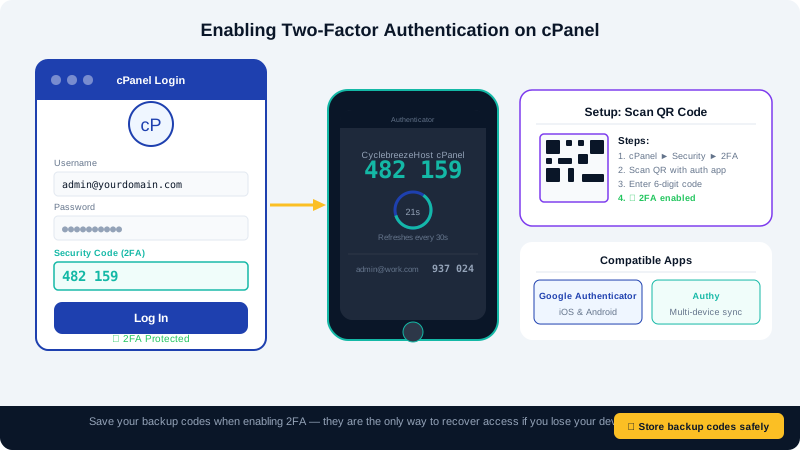
What You Will Need
- An authenticator app on your smartphone. Recommended options:
- Google Authenticator (Android / iOS)
- Authy (Android / iOS — recommended because it supports encrypted backups)
- Microsoft Authenticator (Android / iOS)
- Access to your cPanel login page.
Step 1: Open the 2FA Settings in cPanel
- Log in to your cPanel account at
yourdomain.com/cpanelusing your current username and password. - In the top-right corner, click your username and select Two-Factor Authentication, or search for "Two-Factor Authentication" in the cPanel search bar and click the result.
Step 2: Set Up the Authenticator App
- On the Two-Factor Authentication page, click Set Up Two-Factor Authentication.
- A QR code will appear on screen along with a text code underneath it.
- Open your authenticator app and tap the + or Add Account button.
- Choose Scan QR code and point your camera at the QR code on screen. If scanning does not work, tap Enter code manually and type the text code shown.
- The app will add a new entry named cPanel (or your domain) and begin displaying a 6-digit time-based code that refreshes every 30 seconds.
Step 3: Verify and Save
- Back in your browser, enter the current 6-digit code shown in your authenticator app into the Security Code field.
- Click Configure Two-Factor Authentication.
- You will see a confirmation that 2FA has been successfully enabled.
Logging In With 2FA
From now on, when you log in to cPanel:
- Enter your username and password as usual and click Log In.
- A second screen will appear asking for your Security Code.
- Open your authenticator app, find the cPanel entry, and type the current 6-digit code.
- Click Log In again. The code is valid for 30 seconds — if it expires while you are typing, wait for the next one.
Saving Your Backup Codes
Some authenticator apps (notably Authy) allow cloud backup of your 2FA tokens. Even so, it is good practice to note your account security question answers and keep your cPanel password stored in a password manager so you can contact support to disable 2FA if you ever lose your device.
If you lose access to your authenticator app and cannot log in, open a support ticket from your Client Area account — our team can verify your identity and disable 2FA so you can regain access.
Disabling 2FA
If you need to remove 2FA (for example, when switching phones):
- Log in to cPanel with your password and current authenticator code.
- Navigate to Two-Factor Authentication.
- Click Remove Two-Factor Authentication and confirm.
- Set up 2FA again from Step 1 using your new device.
Additional Security Recommendations
- Enabling 2FA on cPanel protects your hosting environment. Consider also enabling 2FA on your Client Area (billing) account — see the related article Securing Your Client Area with 2FA.
- Use a unique, randomly generated password for your cPanel account and store it in a password manager.
- Regularly review the cPanel > Security > SSH Access settings and disable root SSH login if it is not needed.
Need Help?
Our support team is available 24/7. Contact us at clients.cyclebreezehost.com or email info@cyclebreezehost.com.