Fixing 'Error Establishing a Database Connection'
The "Error Establishing a Database Connection" message means WordPress tried to connect to its MySQL database and failed. Your site will be completely unavailable to visitors until the connection is restored. This error has a short list of causes, and most are straightforward to fix.
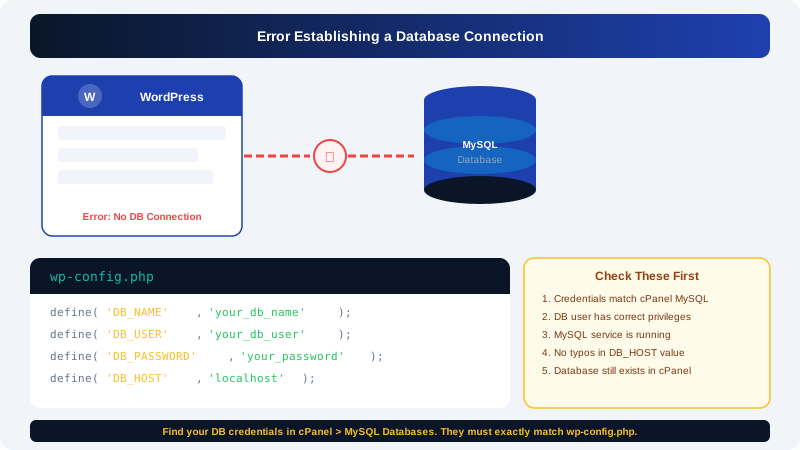
Common Causes
- Incorrect database credentials in
wp-config.php - The MySQL server is temporarily down or overloaded
- The database user has lost its privileges
- The database itself has been accidentally deleted or corrupted
- A corrupted
wp-config.phpfile
Step 1: Check Your Database Credentials
The most common cause is a mismatch between the credentials stored in wp-config.php and the actual database credentials in cPanel.
- Log in to cPanel via clients.cyclebreezehost.com.
- Open File Manager and navigate to your WordPress root directory (usually
public_html). - Right-click
wp-config.phpand choose Edit or Code Editor. - Locate the following four lines:
define( 'DB_NAME',     'your_database_name' );
define( 'DB_USER',     'your_database_user' );
define( 'DB_PASSWORD', 'your_database_password' );
define( 'DB_HOST',     'localhost' );
Now verify each value:
- DB_NAME and DB_USER: Go to cPanel > MySQL Databases. Confirm the database name and the username assigned to it under Current Databases and Current Users.
- DB_PASSWORD: Database passwords are not displayed in plain text after creation. If you are unsure, reset the password (see Step 2).
- DB_HOST: This should almost always be
localhoston shared hosting.
Correct any discrepancies, save wp-config.php, and reload your site.
Step 2: Reset the Database User Password
If you are not sure whether the password in wp-config.php is correct, reset it:
- In cPanel > MySQL Databases, scroll to the Current Users section.
- Click the username linked to your WordPress database.
- Enter and confirm a new password, then click Change Password.
- Update
DB_PASSWORDinwp-config.phpto match the new password.
Step 3: Verify the Database User Has Full Privileges
A database user that has lost the required privileges will cause a connection failure even with correct credentials.
- In cPanel > MySQL Databases, scroll to Add User to Database.
- Select your WordPress database user and your WordPress database from the dropdowns, then click Add.
- On the following screen, select All Privileges and click Make Changes.
Step 4: Check Whether the Database Exists
If the database was accidentally removed, it will need to be recreated and your site restored from a backup.
- In cPanel > MySQL Databases, look for your database under Current Databases.
- If it is missing, you will need to restore from a Softaculous backup (see Step 6 below).
Step 5: Repair the Database
If the database exists and credentials are correct but you are still seeing the error, the database tables may be corrupted. WordPress has a built-in repair tool.
- Open
wp-config.phpand add the following line before the/* That's all, stop editing! */comment:define( 'WP_ALLOW_REPAIR', true ); - Save the file and visit
yourdomain.com/wp-admin/maint/repair.phpin your browser. - Click Repair Database and wait for the process to complete.
- Remove the
WP_ALLOW_REPAIRline fromwp-config.phponce done — leaving it enabled is a security risk.
Step 6: Restore from a Backup
If none of the above steps restore your site, a backup is the most reliable recovery method.
- Log in to cPanel and open Softaculous Apps Installer.
- Click WordPress, then Installations.
- Click the Restore icon next to your site and select a recent backup.
Preventing This Error in Future
- Never edit
wp-config.phpdirectly on a live site without keeping a copy of the original. - Schedule regular backups through Softaculous so you always have a recent restore point.
- Avoid deleting databases from cPanel without first confirming which sites use them.
If you are unable to resolve the error using these steps, contact CyclebreezeHost support at info@cyclebreezehost.com — our team is available 24/7 and can assist with database-level issues.