Fixing Mixed Content and SSL Warnings
After installing an SSL certificate and switching your site to https://, you might notice that the padlock icon in the browser is missing, grayed out, or accompanied by a warning saying the connection is "not fully secure." This is almost always caused by mixed content — a situation where an HTTPS page is loading one or more resources (images, scripts, stylesheets, or iframes) over an insecure HTTP connection. Browsers block or flag these resources to protect visitors.
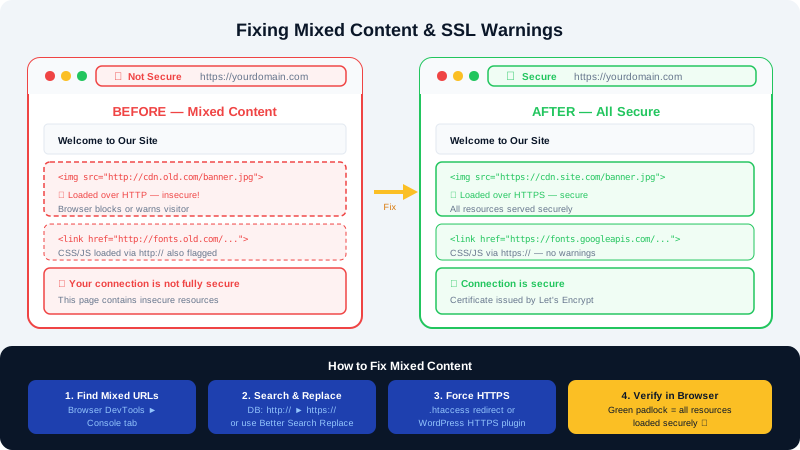
Step 1: Confirm Your SSL Is Active
Before fixing mixed content, verify that your SSL certificate is properly installed:
- Log in to cPanel and go to Security > SSL/TLS Status.
- Confirm that your domain shows a green padlock and a valid Let's Encrypt certificate issued by CyclebreezeHost's AutoSSL system.
- If no certificate is listed, click Run AutoSSL to issue one. It takes a few minutes to provision.
If the certificate is valid but your browser still shows a warning, proceed with the steps below.
Step 2: Force HTTPS in WordPress
Ensure all internal links and resources use https:// by updating your WordPress site URL settings:
- Log in to
yourdomain.com/wp-admin. - Go to Settings > General.
- Change both WordPress Address (URL) and Site Address (URL) from
http://tohttps://. - Click Save Changes. WordPress will log you out — log back in using
https://yourdomain.com/wp-admin.
Step 3: Force HTTPS via .htaccess
Add a redirect rule to your .htaccess file so any HTTP visitor is automatically sent to HTTPS:
- In cPanel File Manager, open
.htaccessin your WordPress root (enable Show Hidden Files if needed). - Add the following block at the very top of the file, above the
# BEGIN WordPresssection:
RewriteEngine On
RewriteCond %{HTTPS} off
RewriteRule ^(.*)$ https://%{HTTP_HOST}%{REQUEST_URI} [L,R=301]
- Save the file and reload your site.
Step 4: Fix Mixed Content With a Plugin
The most efficient way to update remaining http:// references in your database (in post content, widget settings, and option values) is with the Better Search Replace plugin:
- Go to Plugins > Add New, install and activate Better Search Replace.
- Go to Tools > Better Search Replace.
- In Search for: enter
http://yourdomain.com - In Replace with: enter
https://yourdomain.com - Select all tables in the list (use Shift+click to select them all).
- Uncheck Run as dry run? once you are satisfied with the scope.
- Click Run Search/Replace and confirm.
Step 5: Identify Remaining Mixed Content
If warnings persist after the steps above, use your browser's developer tools to find the specific offending resource:
- Open your site in Chrome or Firefox.
- Press
F12to open Developer Tools. - Click the Console tab. Mixed content warnings will appear in red or yellow, showing the exact URL of the non-secure resource.
- Common sources include:
- Hardcoded
http://URLs in theme templates or page builder content. - External resources (fonts, scripts, embeds) loaded over HTTP by a third party.
- Images inserted into post content before the SSL migration.
- Hardcoded
For external resources you cannot control, switch to an https:// version of the URL, find an alternative source, or host the asset locally.
Step 6: Clear Your Cache
After making changes, always clear all caches before retesting:
- In the LiteSpeed Cache plugin (if installed), go to LiteSpeed Cache > Manage > Purge All.
- Clear your browser cache with
Ctrl+Shift+Delete(Windows) orCmd+Shift+Delete(Mac). - Reload the page and check the padlock.
Still Seeing Warnings?
If the padlock is still not fully green after completing these steps, open a support ticket in your Client Area or email info@cyclebreezehost.com. Our team is available 24/7 to investigate.