Fixing the 500 Internal Server Error
A 500 Internal Server Error means the web server encountered an unexpected condition and could not complete the request. In WordPress, this is almost always caused by a misconfigured plugin, a theme conflict, a corrupt .htaccess file, or a PHP memory or syntax error. The steps below walk through the most common causes in order of likelihood, so you can isolate and fix the problem quickly.
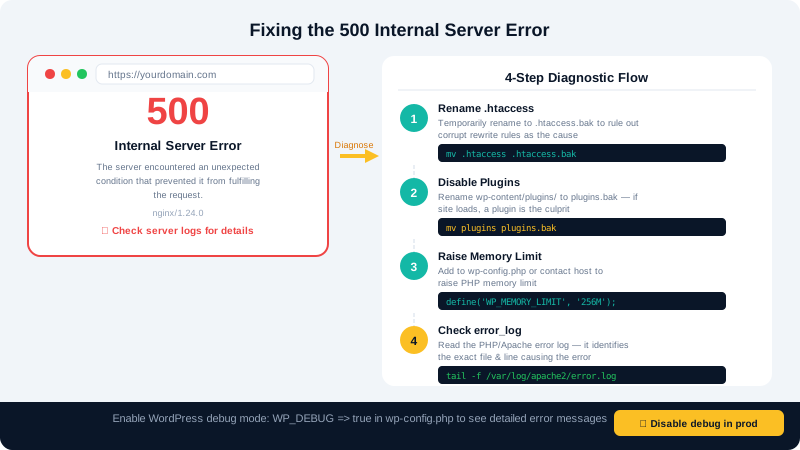
Step 1: Check the Error Log
Before changing anything, look at the actual error so you can target your fix.
- Log in to cPanel and open the File Manager.
- Navigate to your WordPress root (usually
public_html). - Look for an
error_logfile. Open it and scroll to the bottom — the most recent entries will describe the exact cause.
Alternatively, enable WP_DEBUG temporarily by editing wp-config.php and setting:
define( 'WP_DEBUG', true );
define( 'WP_DEBUG_LOG', true );
define( 'WP_DEBUG_DISPLAY', false );
Errors will be written to wp-content/debug.log.
Step 2: Deactivate All Plugins
A faulty plugin is the most common cause. To deactivate all plugins when you cannot access the WordPress dashboard:
- In cPanel File Manager, navigate to
public_html/wp-content/. - Rename the
pluginsfolder toplugins_disabled. - Reload your site. If it loads, a plugin is the cause.
- Rename the folder back to
plugins. - Log in to
yourdomain.com/wp-adminand reactivate plugins one at a time, refreshing the site after each, until the error returns. That last activated plugin is the culprit. - Contact the plugin's developer or find an alternative.
Step 3: Switch to a Default Theme
If deactivating plugins did not resolve the error, the active theme may be at fault.
- In the File Manager, navigate to
public_html/wp-content/themes/. - Rename your active theme's folder (e.g.,
mytheme→mytheme_old). - WordPress will automatically fall back to a default theme such as Twenty Twenty-Four.
- If the site loads, reinstall or update your theme.
Step 4: Regenerate .htaccess
A corrupt .htaccess file can cause 500 errors, especially after a WordPress update or permalink change.
- In the File Manager, locate
.htaccessin your WordPress root. Note: you may need to enable Show Hidden Files in File Manager settings. - Rename it to
.htaccess_oldas a backup. - Create a new
.htaccessfile with these default WordPress contents:
# BEGIN WordPress
<IfModule mod_rewrite.c>
RewriteEngine On
RewriteBase /
RewriteRule ^index\.php$ - [L]
RewriteCond %{REQUEST_FILENAME} !-f
RewriteCond %{REQUEST_FILENAME} !-d
RewriteRule . /index.php [L]
</IfModule>
# END WordPress
- Alternatively, log in to Settings > Permalinks and click Save Changes — WordPress will regenerate
.htaccessautomatically.
Step 5: Increase the PHP Memory Limit
If the error log mentions "Allowed memory size exhausted", the PHP memory limit is too low.
- Open
wp-config.phpin the File Manager. - Add the following line before the
/* That's all, stop editing! */comment:define( 'WP_MEMORY_LIMIT', '256M' ); - Save the file and reload your site.
You can also raise the memory limit in cPanel under Select PHP Version > PHP Options.
Step 6: Check Your PHP Version
An incompatible PHP version can break WordPress or specific plugins. In cPanel, go to Select PHP Version and ensure you are running PHP 8.1 or higher, which is required by WordPress 6.x.
Still Getting the Error?
If you have worked through all the steps above and the 500 error persists, open a support ticket in your Client Area or email info@cyclebreezehost.com. Share the contents of your error log to help our team diagnose the issue quickly. We're available 24/7.