Fixing the WordPress White Screen of Death
The "White Screen of Death" (WSOD) is a frustrating but common WordPress problem — your site or dashboard shows a completely blank white page with no error message. It is almost always caused by a PHP error triggered by a plugin, theme, or resource limit. This article walks you through the steps to identify and fix the cause.
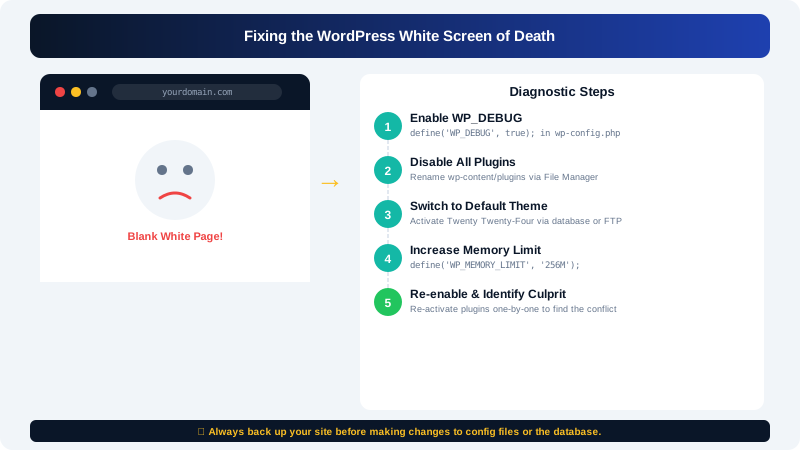
Common Causes
- A plugin that has just been installed, updated, or activated
- A theme conflict, usually after a theme update or switch
- A PHP memory limit that has been reached
- A corrupted
wp-config.phpor core file - A PHP syntax error introduced by a code edit
Step 1: Enable Error Reporting
By default, WordPress suppresses PHP errors, which is why you see a blank screen instead of a useful message. Enable debug mode to reveal the underlying error.
- In cPanel > File Manager, navigate to your WordPress root directory and open
wp-config.php. - Find the line:
define( 'WP_DEBUG', false ); - Change it to:
define( 'WP_DEBUG', true ); define( 'WP_DEBUG_LOG', true ); define( 'WP_DEBUG_DISPLAY', false ); - Save the file and reload your site.
Errors are now written to wp-content/debug.log. Open that file in File Manager to read the error message — it will usually name the exact plugin or theme file responsible.
Important: Turn debug mode off again once you have resolved the issue by setting WP_DEBUG back to false.
Step 2: Deactivate All Plugins
A plugin conflict is the most common cause of the WSOD. Deactivate all plugins at once by renaming the plugins folder — this works even when you cannot access the dashboard.
- In cPanel > File Manager, navigate to
public_html/wp-content/. - Right-click the
pluginsfolder and rename it toplugins_disabled. - Reload your site or dashboard.
If the white screen is gone, a plugin was the cause. Re-enable plugins one by one to identify the culprit:
- Rename
plugins_disabledback toplugins. - In your dashboard, go to Plugins > Installed Plugins.
- Activate each plugin individually, reloading the site after each one until the white screen returns.
- The last plugin you activated is the problem — leave it deactivated and contact the plugin developer or find an alternative.
Step 3: Switch to a Default Theme
If disabling plugins does not fix the issue, the active theme may be the cause.
- In cPanel > File Manager, navigate to
public_html/wp-content/themes/. - Rename your active theme's folder (e.g. rename
mythemetomytheme_disabled). - WordPress will automatically fall back to a default theme.
- Reload your site to see if the white screen is resolved.
If it is, the theme was the problem. Check for an available theme update, or contact the theme developer.
Step 4: Increase the PHP Memory Limit
WordPress may run out of memory mid-execution, which can produce a blank screen.
- In cPanel > File Manager, open
public_html/.htaccess. - Add the following line:
php_value memory_limit 256M - Save and reload your site.
Alternatively, add this line to wp-config.php before the /* That's all, stop editing! */ comment:
define( 'WP_MEMORY_LIMIT', '256M' );
Step 5: Check for a Corrupted wp-config.php
If none of the above steps resolve the issue, your wp-config.php may have been corrupted by a failed edit.
- Open
wp-config.phpin cPanel > File Manager > Code Editor. - Look for stray characters, especially at the very beginning or end of the file — there should be nothing before
<?phpand nothing after the closing?>(if present). - Remove any stray whitespace or characters and save.
Step 6: Restore from a Backup
If you have exhausted the steps above without finding a cause, restoring a recent backup is the fastest path to a working site.
- Log in to cPanel and open Softaculous Apps Installer.
- Click WordPress, then Installations.
- Click the Restore icon next to your site and select a backup taken before the issue appeared.
For assistance diagnosing a persistent white screen, contact CyclebreezeHost support at info@cyclebreezehost.com — our team is available 24/7.