Getting Started with Application Hosting
CyclebreezeHost Application Hosting lets you run server-side web applications built with Node.js, Python, or Ruby — all managed from your cPanel control panel without needing a dedicated VPS or complex server configuration. Your app runs inside an isolated environment powered by Phusion Passenger, giving it a stable and secure runtime.
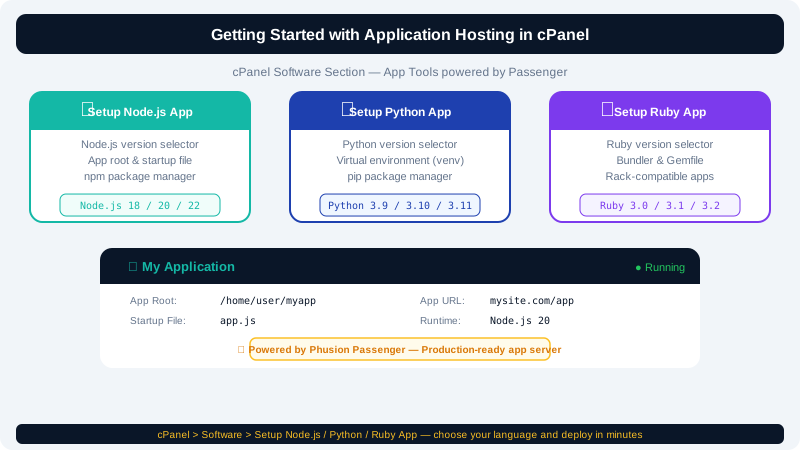
What Application Hosting Supports
CyclebreezeHost Application Hosting supports three runtime environments:
| Runtime | Tool in cPanel |
|---|---|
| Node.js | Setup Node.js App |
| Python | Setup Python App |
| Ruby | Setup Node.js App (Passenger-managed) |
You choose the version of each runtime, making it easy to match your local development environment.
Prerequisites
Before creating your first application, make sure you have:
- An active CyclebreezeHost hosting account with Application Hosting enabled.
- Your application files uploaded to your hosting space (via File Manager or FTP/SFTP).
- A
package.json(Node.js) orrequirements.txt(Python) listing your dependencies. - Optionally, a domain or subdomain you want the app to respond on.
How It Works
Each application you create gets its own:
- Application root — the directory on the server where your source files live.
- Application URL — the domain or subdomain path that routes traffic to your app.
- Startup file — the entry point Passenger calls to launch your app (e.g.,
app.jsorapp.py). - Virtual environment — an isolated package directory so dependencies do not conflict between apps.
Passenger handles process management automatically: it starts your app on the first request, keeps it running, and restarts it if it crashes.
Key Steps to Get Up and Running
- Upload your code. Use cPanel's File Manager or an FTP client to upload your project files to a folder in your home directory (e.g.,
~/myapp). - Open the app setup tool. In cPanel, find Setup Node.js App or Setup Python App under the Software section.
- Create a new application. Click Create Application, then configure the runtime version, application root, URL, and startup file.
- Install dependencies. Use the virtual environment command shown in the tool to run
npm installorpip install -r requirements.txt. - Set environment variables. Add any required keys (API tokens, database URLs) through the tool's environment variable section.
- Start your app. Click Start and then visit your application URL to confirm it is live.
Managing Multiple Applications
You can host several independent apps under one cPanel account as long as they use different application URLs. Each app has its own isolated virtual environment, so different Node.js or Python versions will not interfere with each other.
Getting Help
If your application does not start or returns an error, cPanel exposes a log path for each app — check the Troubleshooting Application Startup Errors article for a step-by-step diagnosis guide. For billing, plan changes, or account issues, log in to the Client Area at https://clients.cyclebreezehost.com or contact the CyclebreezeHost support team at info@cyclebreezehost.com any time — support is available 24/7.