Getting Started with cPanel
cPanel is the control panel included with all CyclebreezeHost shared and reseller hosting plans. It gives you a web-based interface to manage every aspect of your hosting account.
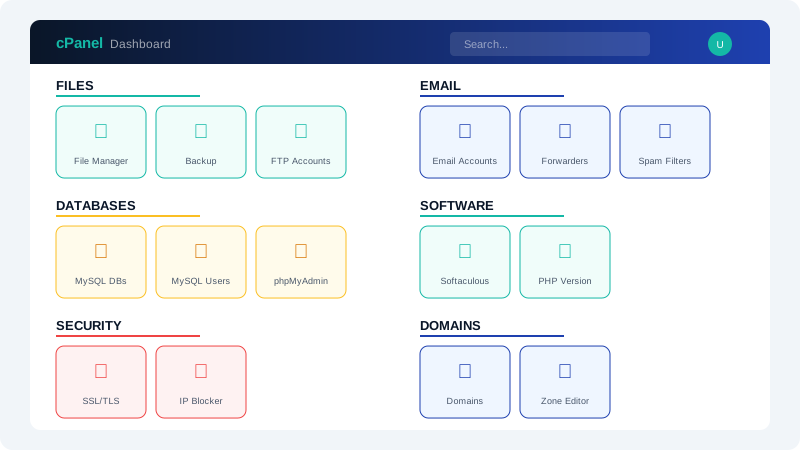
Accessing cPanel
You can access cPanel in two ways:
- Direct URL: Navigate to
https://yourdomain.com/cpanelin your browser. - Client area: Log into your CyclebreezeHost account, go to Services, select your hosting plan, and click Login to cPanel.
Key Sections
Files
- File Manager: Browse, upload, edit, and manage your website files directly in the browser.
- Backups: Download full or partial backups of your account.
- Disk Usage: See how much storage space your account is using.
Databases
- MySQL Databases: Create and manage databases for your applications.
- phpMyAdmin: Access a visual interface for managing database tables and running SQL queries.
Domains
- Addon Domains: Host additional websites on your account.
- Subdomains: Create subdomains like
blog.yourdomain.com. - Redirects: Set up URL redirects from one address to another.
- Email Accounts: Create and manage email addresses for your domain.
- Forwarders: Forward email from one address to another.
- Spam Filters: Configure SpamAssassin to filter unwanted email.
Security
- SSL/TLS: Manage SSL certificates for your domains.
- IP Blocker: Block specific IP addresses from accessing your site.
- Two-Factor Authentication: Add an extra layer of security to your cPanel login.
Software
- Softaculous: One-click installer for WordPress, Joomla, and hundreds of other applications.
- PHP Version: Switch between PHP versions for your account.
Tips
- Bookmark your cPanel URL for quick access.
- Use File Manager for small edits and FTP for bulk file transfers.
- Always create a backup before making major changes to your site.