Getting Started with CyclebreezeHost
Welcome to CyclebreezeHost! This guide walks you through the essential steps to go from a new account to a live website.
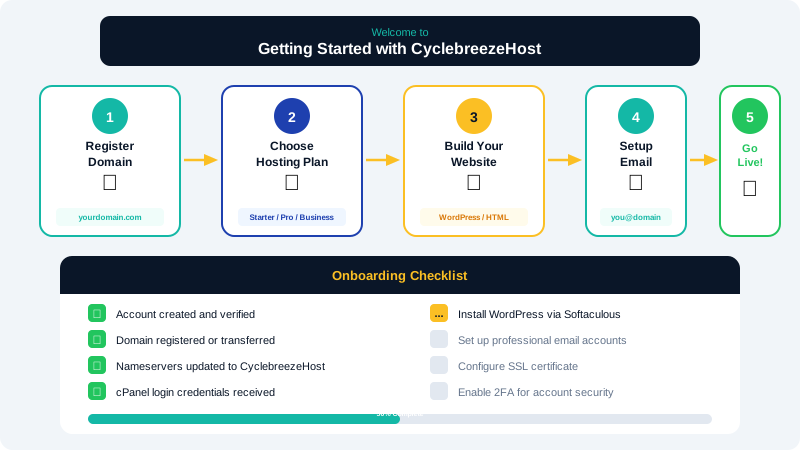
Step 1: Check Your Welcome Email
After signing up, you will receive a welcome email containing:
- Your cPanel login URL and credentials
- Your server's IP address
- Nameserver information
- Links to helpful resources
Save this email — you will need these details during setup.
Step 2: Point Your Domain
If you registered your domain elsewhere, update its nameservers to:
ns1.cyclebreezehost.comns2.cyclebreezehost.com
DNS propagation takes up to 24-48 hours but usually completes within a few hours. See our detailed guide on pointing your domain for more information.
Step 3: Log Into cPanel
Access cPanel using the URL in your welcome email or by visiting yourdomain.com/cpanel. This is your hosting control panel where you manage files, databases, email, and more.
Step 4: Install Your Website
Using a CMS (WordPress, Joomla, etc.)
- In cPanel, find Softaculous Apps Installer under the Software section.
- Choose your application (WordPress is the most popular choice).
- Click Install Now and fill in the details.
- Your website will be live in under a minute.
Uploading a Custom Website
- Open File Manager in cPanel.
- Navigate to the
public_htmldirectory. - Upload your website files (HTML, CSS, JavaScript, images).
- Make sure your homepage is named
index.htmlorindex.php.
Step 5: Set Up Email
- In cPanel, click Email Accounts.
- Create email addresses like
info@yourdomain.com. - Access webmail at
yourdomain.com/webmailor configure your preferred email client.
Step 6: Secure Your Site
- SSL Certificate: AutoSSL will automatically provision a free SSL certificate once your DNS is active. Force HTTPS redirect in cPanel under Domains.
- Backups: Our servers create daily automated backups, but consider downloading a manual backup after major changes.
- Strong passwords: Use unique, complex passwords for cPanel, email, and any CMS admin accounts.
Getting Help
- Knowledge Base: Browse our articles for step-by-step guides on common tasks.
- Support Tickets: Open a ticket from the client area for account-specific help.
- Live Chat: Available during business hours for quick questions.
We are here to help you succeed. Do not hesitate to reach out if you need assistance at any point.