Hardening WordPress Security
WordPress powers a large proportion of the web, which makes it a frequent target for automated attacks. Most successful compromises are not sophisticated — they exploit predictable usernames, weak passwords, outdated software, or misconfigured files. The steps below close the most common attack vectors and significantly raise the cost of attacking your site.
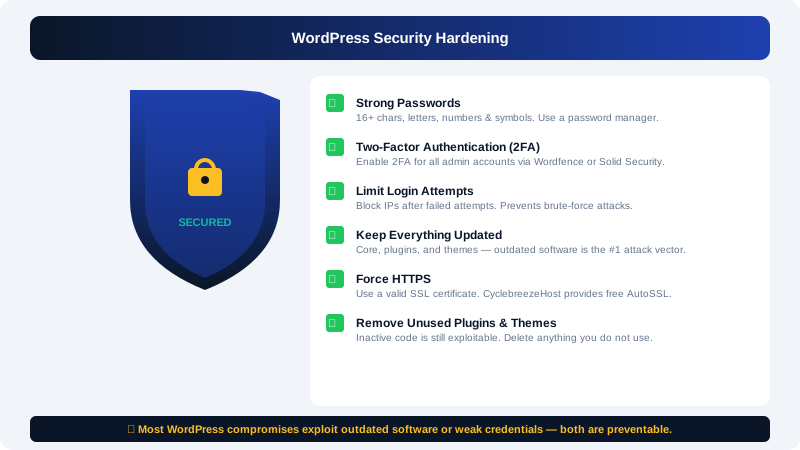
1. Keep Everything Updated
Outdated WordPress core, plugins, and themes are the leading cause of compromised sites. Enable automatic minor core updates and regularly review plugins for pending updates under Dashboard > Updates.
2. Use Strong, Unique Credentials
- Admin username: Do not use
admin,administrator, or your domain name. Choose something non-obvious. - Password: Use a minimum of 16 characters, mixing letters, numbers, and symbols. A password manager makes this practical.
- Email address: The email linked to your admin account should be one only you control — not a shared or catch-all address.
To change a username, create a new administrator account with the desired name, log in as that new user, then delete the old account and reassign its content to the new one.
3. Limit Login Attempts
By default, WordPress allows unlimited login attempts. Attackers exploit this with automated scripts that try thousands of password combinations. Install a plugin such as Wordfence Security or Solid Security to:
- Block IP addresses after a set number of failed attempts
- Enable two-factor authentication for admin accounts
- Send email alerts on suspicious login activity
4. Enable Two-Factor Authentication
Two-factor authentication (2FA) requires a second verification step — typically a time-based code from an authenticator app — in addition to your password. Even if your password is stolen, an attacker cannot log in without the second factor. Both Wordfence and Solid Security include free 2FA for WordPress user accounts.
5. Restrict wp-admin by IP Address
If your IP address is static, blocking all other IPs from reaching wp-admin is one of the strongest protections available.
In cPanel > File Manager, navigate to public_html/wp-admin/ and create or edit a .htaccess file with the following, replacing YOUR.IP.ADDRESS.HERE with your actual IP:
order deny,allow
deny from all
allow from YOUR.IP.ADDRESS.HERE
If your IP is dynamic, rely on the login-limiting and 2FA measures from the previous steps instead.
6. Secure wp-config.php
The file wp-config.php contains your database credentials and secret keys. Restrict direct HTTP access to it by adding the following to your root .htaccess file:
<files wp-config.php>
order allow,deny
deny from all
</files>
7. Disable the Dashboard File Editor
WordPress includes a built-in code editor under Appearance > Theme File Editor and Plugins > Plugin File Editor. If an attacker gains admin access, they can use this editor to inject malicious code. Disable it by adding this line to wp-config.php:
define( 'DISALLOW_FILE_EDIT', true );
8. Enable HTTPS
Your CyclebreezeHost plan includes a free Let's Encrypt SSL certificate via AutoSSL. Verify it is active:
- Log in to cPanel.
- Go to SSL/TLS Status.
- Click Run AutoSSL if the certificate is missing or expired.
Once SSL is active, update your WordPress address and site address to https:// under Settings > General.
9. Remove Unused Plugins and Themes
Unused plugins and themes are still potential entry points, even when deactivated. Permanently delete anything you are not using from Plugins > Installed Plugins and Appearance > Themes.
10. Schedule Regular Backups
A recent backup will not prevent an attack, but it will let you recover quickly if one succeeds. Use Softaculous in cPanel to schedule automated backups and store at least one copy off-server.
Security Hardening Checklist
| Task | Done? |
|---|---|
| WordPress, plugins, and themes up to date | |
| Non-obvious admin username in use | |
| Strong password set and stored in a password manager | |
| Two-factor authentication enabled | |
| Login attempt limiting active | |
| HTTPS enabled and enforced | |
DISALLOW_FILE_EDIT set in wp-config.php | |
| Unused plugins and themes deleted | |
| Automated backups scheduled |
For further guidance or if you suspect your site has been compromised, contact CyclebreezeHost support at info@cyclebreezehost.com — we are available 24/7.