How to Install a Free SSL Certificate
An SSL (Secure Sockets Layer) certificate encrypts data transmitted between your visitors' browsers and your web server. This protects sensitive information such as login credentials, payment details, and personal data from being intercepted by malicious third parties. Websites with SSL display a padlock icon in the browser address bar and use the https:// protocol instead of http://.
Beyond security, SSL is also a ranking factor for search engines. Google gives preference to HTTPS-enabled websites, making SSL essential for both protection and visibility.
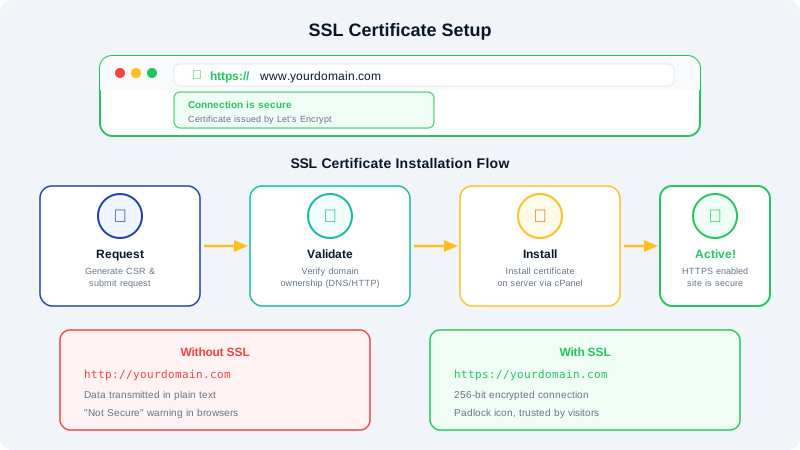
Using AutoSSL in cPanel
All CyclebreezeHost hosting accounts include free SSL certificates through AutoSSL, powered by Let's Encrypt. In most cases, your SSL certificate is automatically installed when your domain is pointed to our servers. Here is how to verify and manage it:
- Log in to your cPanel account.
- Navigate to the Security section and click SSL/TLS Status.
- You will see a list of your domains along with their SSL status. A green padlock indicates that SSL is active.
- If a certificate is not yet installed, click Run AutoSSL to trigger the process manually. AutoSSL will attempt to validate your domain and issue a certificate within a few minutes.
AutoSSL certificates renew automatically every 90 days, so you do not need to worry about manual renewals.
Verifying That SSL Is Active
After installation, open your website in a browser using https:// in the URL. You should see a padlock icon next to your domain name. Click the padlock to view certificate details, including the issuer and expiration date.
You can also use an online tool such as SSL Labs to run a full analysis of your SSL configuration.
Forcing HTTPS via .htaccess
Once SSL is installed, you should redirect all HTTP traffic to HTTPS. Add the following rules to the .htaccess file in your public_html directory:
RewriteEngine On
RewriteCond %{HTTPS} off
RewriteRule ^(.*)$ https://%{HTTP_HOST}%{REQUEST_URI} [L,R=301]
This ensures that visitors who type http:// are automatically redirected to the secure version of your site.
Fixing Mixed Content Warnings
After enabling HTTPS, your browser may show a warning that the page contains mixed content. This happens when your site loads some resources (images, scripts, stylesheets) over HTTP instead of HTTPS. To resolve this:
- Update hardcoded
http://URLs in your website files and database to usehttps://. - For WordPress sites, use a plugin like Really Simple SSL to handle mixed content automatically.
- Check your browser's developer console (F12) for specific resources causing the warning.
Troubleshooting
If AutoSSL fails to issue a certificate, verify the following:
- Your domain's DNS A record points to your CyclebreezeHost server IP address.
- There is no
.htaccessrule blocking the validation path (/.well-known/acme-challenge/). - Your domain is not behind a proxy that hides the server IP.
If you continue to experience issues, open a support ticket and our team will assist you promptly.