How to Log In to cPanel
cPanel is the industry-standard control panel for managing your web hosting account. It gives you access to file management, email configuration, databases, and much more. This guide walks you through the different ways to access your cPanel dashboard.
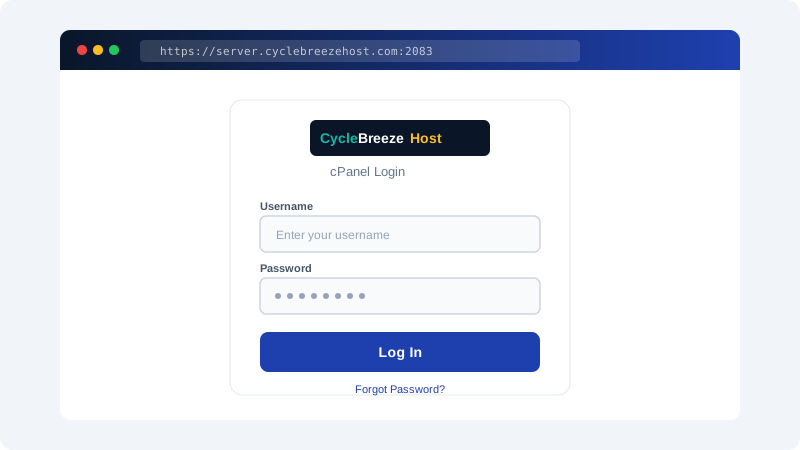
Method 1: Log In Through the Client Area
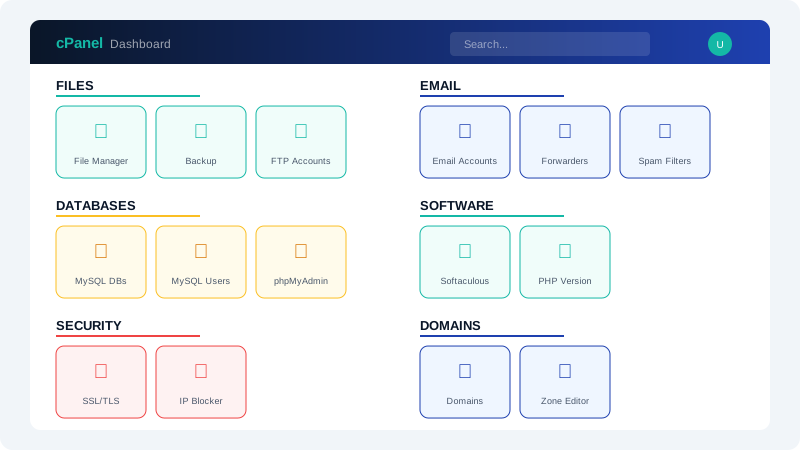
The easiest way to access cPanel is through your CyclebreezeHost client area.
- Go to CyclebreezeHost Client Area and log in with your account credentials.
- Navigate to Services > My Services.
- Click on your active hosting plan.
- On the product details page, click the Log in to cPanel button.
This method automatically authenticates you, so you do not need to enter your cPanel username and password separately.
Method 2: Access cPanel via Direct URL
You can access cPanel directly from your browser using one of these URL formats:
- https://yourdomain.com:2083 (secure, recommended)
- https://yourdomain.com/cpanel (convenient alternative)
- https://server-ip-address:2083 (useful if your domain DNS has not propagated yet)
Enter your cPanel username and password when prompted. These credentials were included in your welcome email when you first set up your hosting account.
Method 3: Use Your Server IP Address
If your domain is not yet pointing to CyclebreezeHost servers, you can still access cPanel using your server's IP address. You can find this IP address in your welcome email or in the client area under your service details.
Finding Your cPanel Credentials
Your cPanel login details are separate from your client area login. If you do not remember your cPanel credentials:
- Check the Welcome Email you received when your hosting account was provisioned.
- In the client area, navigate to your service and look for the cPanel username listed on the product details page.
- Use the Reset Password option in the client area to set a new cPanel password.
Troubleshooting Login Issues
Incorrect username or password: Double-check that you are using your cPanel credentials, not your client area login. Passwords are case-sensitive.
Page not loading: Your IP address may be blocked due to multiple failed login attempts. CyclebreezeHost servers temporarily block IPs after several incorrect password entries. Wait 15 minutes and try again, or contact support to have your IP unblocked.
SSL certificate warning: If you see a browser security warning when using the direct URL, this may occur when your domain SSL has not been configured yet. Use the server IP address with port 2083 as an alternative.
Account suspended: If you see a suspension notice, check your email for any notifications from CyclebreezeHost regarding overdue invoices or terms of service issues.
If you continue to experience problems accessing cPanel, open a support ticket through the client area and our team will assist you promptly.