How to Point Your Domain to CyclebreezeHost
After purchasing a hosting plan, you need to point your domain to our servers. There are two ways to do this: changing nameservers or updating DNS records.
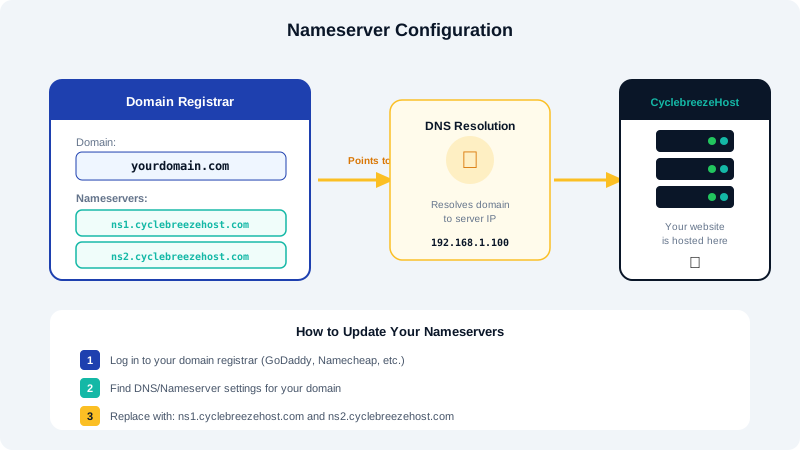
Option 1: Change Nameservers (Recommended)
Changing your nameservers delegates all DNS management to CyclebreezeHost. This is the simplest approach.
- Log into your domain registrar (where you purchased your domain).
- Find the nameserver settings for your domain.
- Replace the existing nameservers with:
ns1.cyclebreezehost.comns2.cyclebreezehost.com
- Save the changes.
Nameserver changes can take up to 24-48 hours to propagate globally, though it usually happens within a few hours.
Option 2: Update DNS A Record
If you want to keep DNS management with your current provider, you can point just the A record to your hosting IP.
- Find your hosting IP address in cPanel under Server Information or in your welcome email.
- Log into your DNS provider.
- Update the A record for
@(root domain) to your hosting IP. - Update or create an A record for
wwwpointing to the same IP. - Save the changes.
Verifying the Change
After making changes, you can check propagation status using online DNS lookup tools. Once propagation is complete, your domain will load your website from CyclebreezeHost servers.
Common Issues
- Site not loading after 48 hours: Double-check that the nameservers or A records are entered correctly with no typos.
- Email stopped working: If you changed nameservers, make sure your MX records are configured in cPanel's Zone Editor.
- SSL not working: After DNS propagation, request a new SSL certificate from cPanel's SSL/TLS section or let AutoSSL provision one automatically.