How to Set Up Domain Forwarding
Domain forwarding (also called domain redirection) automatically sends visitors from one URL to another. This is useful when you have multiple domains and want them all to lead to your main website, or when you have moved content to a new URL. This guide explains how to configure domain forwarding in cPanel.
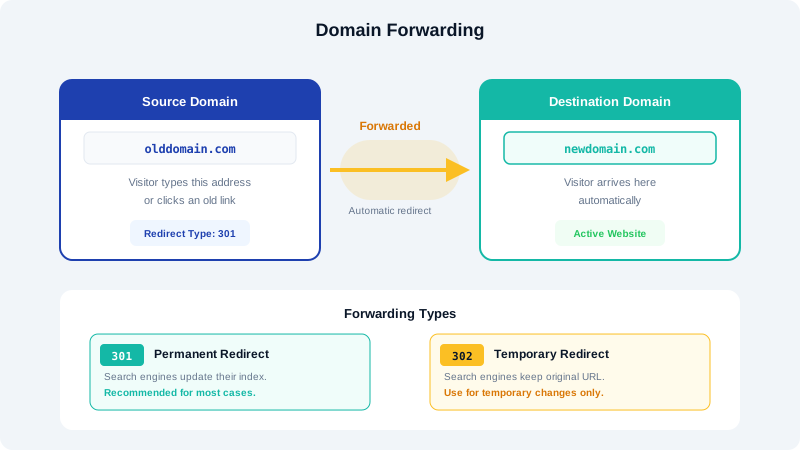
What Is Domain Forwarding?
When a visitor types in a forwarded domain, their browser is automatically redirected to the destination URL you specify. For example, you might forward myolddomain.com to mynewdomain.com so that visitors and search engines reaching the old address are seamlessly sent to the correct site.
Permanent vs Temporary Redirects
Choosing the correct redirect type is important, especially for search engine optimization.
301 Redirect (Permanent)
A 301 redirect tells browsers and search engines that the page has permanently moved to a new location. Search engines will transfer the ranking value (link equity) from the old URL to the new one over time.
Use when:
- You have permanently moved your site to a new domain.
- You have changed a page URL and the old URL will not be used again.
- You want search engines to index the new URL and drop the old one.
302 Redirect (Temporary)
A 302 redirect indicates that the move is temporary. Search engines will continue to index the original URL.
Use when:
- You are temporarily sending visitors to a different page (e.g., during maintenance).
- You plan to bring the original URL back in the future.
- You are running a short-term campaign or promotion.
Setting Up Domain Forwarding in cPanel
- Log in to your cPanel dashboard.
- Navigate to the Domains section and click Redirects.
- Configure the redirect:
- Type: Select Permanent (301) or Temporary (302).
- https?://(www.)?: Select the domain you want to redirect from.
- / (path field): Leave blank to forward the entire domain. Enter a specific path (e.g.,
/old-page) to forward only that URL. - Redirects to: Enter the full destination URL including
https://(e.g.,https://www.mynewdomain.com).
- Choose redirect options:
- Only redirect with www.: Only forwards requests that include
www. - Redirect with or without www.: Forwards all requests regardless of whether
www.is included (recommended). - Do Not Redirect www.: Only forwards the non-www version.
- Wild Card Redirect: When enabled, all pages under the source domain will be forwarded to the corresponding path on the destination domain. For example,
olddomain.com/aboutwill redirect tonewdomain.com/about.
- Only redirect with www.: Only forwards requests that include
- Click Add to save the redirect.
Forwarding with Masking
Domain masking (also known as URL cloaking) keeps the original domain name visible in the browser address bar while displaying content from the destination URL. This is done using HTML frames and is generally not recommended because it can cause issues with search engines, bookmarking, and browser security warnings. For most use cases, a standard 301 redirect is the better approach.
Managing Existing Redirects
To view or remove existing redirects:
- Go to Redirects in cPanel.
- Scroll down to the Current Redirects section.
- Click the Delete button next to any redirect you want to remove.
Tips for Domain Forwarding
- Always use a 301 redirect for permanent moves to preserve your search engine rankings.
- Test your redirect after setting it up by visiting the source URL in a browser.
- If forwarding an entire domain, consider also forwarding the
wwwversion to ensure complete coverage. - Clear your browser cache if a redirect seems to not be working, as browsers cache redirect responses.
For help setting up more advanced redirect rules, contact CyclebreezeHost support.