Installing Joomla, Drupal, and Other Apps with Softaculous
Softaculous is the auto-installer built into your CyclebreezeHost cPanel account. While WordPress is the most popular choice, Softaculous supports over 400 applications — including Joomla, Drupal, PrestaShop, Magento, Moodle, and many others. Any of these can be installed in a few clicks with no manual file uploads or database configuration required.
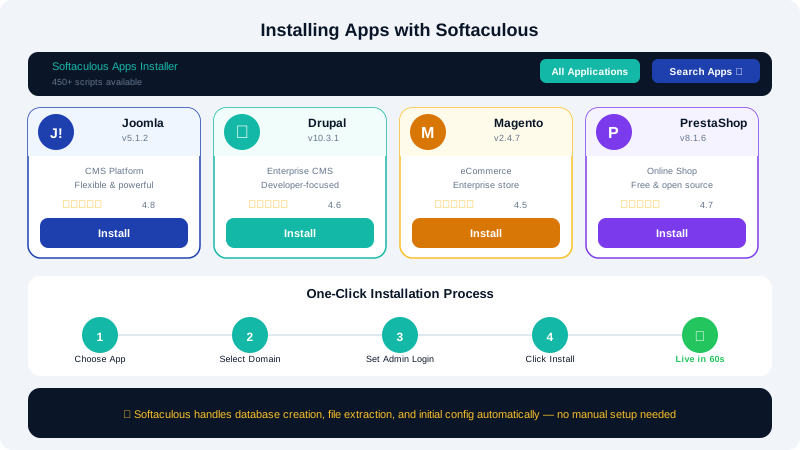
Accessing Softaculous
- Log in to cPanel at
clients.cyclebreezehost.com. - Scroll to the Software section and click Softaculous Apps Installer.
- The Softaculous dashboard opens with a category list on the left and featured applications in the main panel.
Browsing Available Applications
Use the left-hand category tree to filter by type:
| Category | Example apps |
|---|---|
| CMS | Joomla, Drupal, TYPO3 |
| Ecommerce | PrestaShop, OpenCart, Magento |
| Forums | phpBB, MyBB, Discourse |
| LMS | Moodle, Chamilo |
| Portal/CMS | Concrete CMS, SilverStripe |
| Wiki | DokuWiki, MediaWiki |
| Blog | Ghost, b2evolution |
Use the search bar at the top to find an application by name.
Installing Joomla
-
Click Joomla in the CMS category (or search for it).
-
Click Install Now.
-
Fill in the installation form:
- Choose Protocol: Select
https://(SSL is included free with your CyclebreezeHost account). - Choose Domain: Select the domain you want to install on.
- In Directory: Leave blank to install at the root (e.g.,
yourdomain.com), or enter a folder name for a subdirectory install (e.g.,joomla). - Site Name / Description: Enter your site's display name.
- Admin Username / Password / Email: Set strong credentials. These are your Joomla admin login details.
- Choose Language: Select your preferred language.
- Select Version: Use the latest stable release unless you have a specific compatibility requirement.
- Advanced Options: Optionally set a custom database name and table prefix, and configure automated backups within Softaculous.
- Choose Protocol: Select
-
Click Install. Softaculous creates the database, uploads the files, and configures Joomla automatically. Installation takes about 30 seconds.
-
When complete, Softaculous shows your site URL and admin panel URL. Bookmark the admin URL — typically
https://yourdomain.com/administrator.
Installing Drupal
- Click Drupal in the CMS category.
- Click Install Now.
- Complete the same fields as above. Drupal-specific notes:
- The admin username cannot be
admin— choose something less predictable. - Drupal is more resource-intensive than Joomla. If you plan a large site, consider a VPS plan for more headroom.
- The admin username cannot be
- Click Install. The admin panel is at
https://yourdomain.com/user/loginby default.
Installing Other Applications
The process is consistent across all Softaculous applications:
- Find the app in the category list or via search.
- Click Install Now.
- Fill in the protocol, domain, directory, and admin credentials.
- Click Install.
A progress bar tracks the installation. On completion you receive the frontend URL and admin URL.
Managing Installed Applications
Softaculous keeps a record of everything it has installed on your account.
- In the Softaculous dashboard, click All Installations (the grid icon in the top toolbar).
- You can see every installed application, its version, and the domain it is on.
- From this view you can:
- Update — upgrade to the latest version with one click
- Backup — create a Softaculous-managed backup of that installation
- Restore — revert to a Softaculous backup
- Clone — copy an installation to another domain or directory (useful for staging)
- Remove — uninstall the application and optionally delete its database
Updating Applications
Keeping applications up to date is critical for security. Softaculous can send email notifications when updates are available.
- In Softaculous → Settings, enter an email address for update notifications.
- When an update is available, return to All Installations, click the update icon next to the app, and follow the prompt.
Always use JetBackup or the Softaculous backup function to create a backup before updating, so you can roll back if something breaks.
Removing an Application
- Go to All Installations in Softaculous.
- Click the Remove icon (trash can) next to the application.
- Check Remove Database and Remove Database User if you want a clean uninstall.
- Confirm the removal.
If you need help choosing the right application for your project, contact CyclebreezeHost support at info@cyclebreezehost.com. The team is available 24/7.