How to Install WordPress with Softaculous
Softaculous is a one-click application installer built into your CyclebreezeHost cPanel account. It handles the full WordPress setup — creating the database, configuring files, and placing everything in the right location — so you can go from zero to a working site in minutes.
Before You Begin
Make sure you have:
- An active CyclebreezeHost hosting account
- A domain already pointed to your hosting (or you can install to a subdomain)
- Access to cPanel (log in at
yourdomain.com/cpanelor via the CyclebreezeHost Client Area)
Step 1: Open Softaculous in cPanel
- Log in to cPanel.
- Scroll to the Software section and click Softaculous Apps Installer.
- In the left sidebar, click WordPress, or use the search bar to find it.
- Click the Install tab (not "Quick Install" — the full installer gives you more control).
Step 2: Configure the Installation
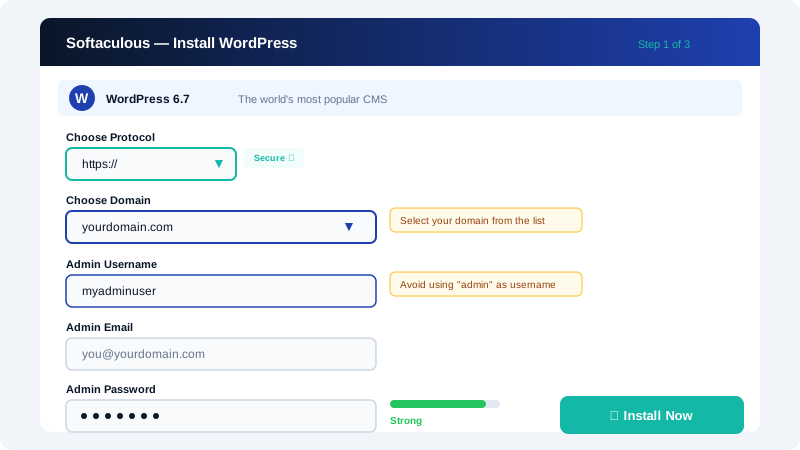
Fill in the settings on the install form:
| Field | What to Enter |
|---|---|
| Choose Protocol | Select https:// if your domain has SSL (recommended) |
| Choose Domain | Select the domain or subdomain for this installation |
| In Directory | Leave blank to install at the root (e.g. yourdomain.com), or enter a folder name like blog |
| Site Name | Your website's name |
| Site Description | A short tagline |
| Admin Username | Choose something other than admin for security |
| Admin Password | Use a strong, unique password |
| Admin Email | Your working email address |
| Select Language | Choose your preferred language |
Step 3: Choose a Theme (Optional)
Scroll down to the Select Theme section. Softaculous lets you install a starter theme at the same time. You can skip this and install a theme later from within WordPress if you prefer.
Step 4: Set Up Automated Backups (Recommended)
Under Advanced Options, set Automated Backups to a frequency that suits you (daily or weekly is a good starting point). Choose a Backup Rotation value such as 4 to keep four recent backups before older ones are overwritten.
Step 5: Complete the Installation
- Scroll to the bottom and click Install.
- Softaculous will run the installation — this typically takes 30 to 60 seconds.
- When it finishes, you will see a confirmation screen with two links:
- Administrative URL — your WordPress dashboard (
yourdomain.com/wp-admin) - Site URL — your live website
- Administrative URL — your WordPress dashboard (
Click the Administrative URL to log in with the username and password you set above.
After Installation
- Enable SSL: If you chose
https://during install and SSL is not yet active, go to cPanel > SSL/TLS Status > Run AutoSSL to provision your free Let's Encrypt certificate. - Install LiteSpeed Cache: CyclebreezeHost runs LiteSpeed web servers. Install the free LiteSpeed Cache plugin from the WordPress plugin directory to get the best performance from your hosting environment.
- Bookmark wp-admin: Your dashboard URL is
yourdomain.com/wp-admin. Save it somewhere handy.
Managing Your Installation
You can return to Softaculous at any time to view, back up, clone, or remove your WordPress installation. Open Softaculous in cPanel, click WordPress in the left sidebar, then click Installations.
If you run into any issues during installation, contact CyclebreezeHost support at info@cyclebreezehost.com — our team is available 24/7.