Invoices and Payment Methods
The CyclebreezeHost Client Area is where all billing activity takes place. You can view and download invoices, pay outstanding balances, and update your saved payment methods — all without needing to contact support. This article walks you through each of these tasks.
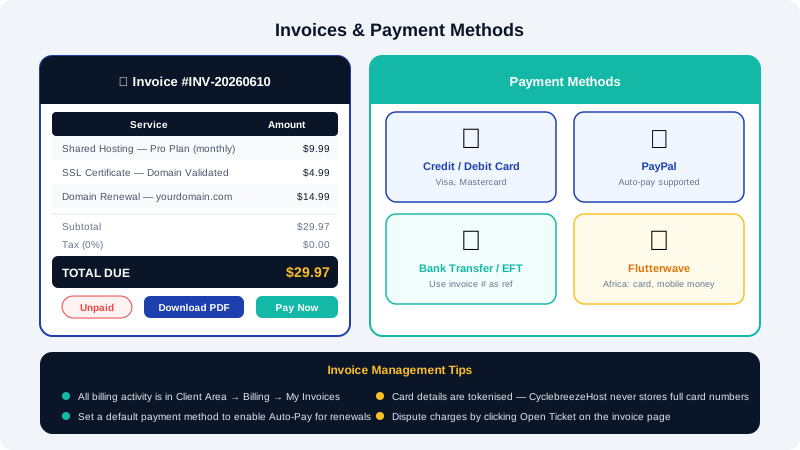
Viewing Your Invoices
- Log in to the Client Area at https://clients.cyclebreezehost.com.
- Click Billing in the top navigation, then select My Invoices.
- You will see a list of all invoices, each with a status: Unpaid, Paid, or Cancelled.
- Click any invoice number to open the full invoice detail page.
- To download a PDF copy, click the Download PDF or Print button on the invoice page.
Invoice emails are also sent to the billing email address on your account. If you are not receiving them, check your spam folder and make sure the email address in your profile is correct.
Paying an Invoice
- Open the unpaid invoice from Billing > My Invoices.
- Review the line items to confirm the charges.
- Select a payment method from the options shown at the bottom of the invoice.
- Follow the on-screen prompts to complete payment.
- Once payment is confirmed, the invoice status changes to Paid and a receipt is emailed to you.
Tip: If auto-renew is enabled for a service, CyclebreezeHost will automatically charge your default payment method when the renewal invoice is generated — you do not need to log in and pay manually.
Available Payment Methods
CyclebreezeHost supports several payment options in the Client Area. The methods available to you may vary depending on your billing country:
| Payment Method | Notes |
|---|---|
| Credit / Debit Card | Visa, Mastercard accepted; card is saved for future auto-payments |
| Bank Transfer / EFT | Use the invoice number as your payment reference |
| PayPal | Redirects to PayPal checkout; can be set as default for auto-pay |
| Flutterwave | Covers card, bank transfer, and mobile money for African markets |
If a payment method is not listed or you need assistance with a specific payment option, open a support ticket in the Client Area.
Adding or Updating a Payment Method
- In the Client Area, go to Billing > Payment Methods.
- Click Add New Credit Card or the relevant option for your preferred method.
- Enter your card or account details and click Save.
- To set a card as your default for automatic payments, click Set as Default next to the saved method.
- To remove an old card, click Delete next to it.
Security note: CyclebreezeHost does not store full card numbers. Card details are tokenised and held by our payment processor. You can safely add and remove cards without risk of exposing your full card data.
Invoice Disputes
If you see a charge that looks incorrect:
- Open the invoice in question.
- Review each line item and compare it to your active services.
- If something is wrong, click Open Ticket or email info@cyclebreezehost.com with the invoice number and a description of the discrepancy.
Our billing team aims to respond to all disputes within one business day.
Frequently Asked Questions
Can I get an invoice in a currency other than USD? Yes. Your Client Area currency is set based on your country at registration. You can switch currencies using the currency selector. Note that switching currency after an invoice is generated will not change the currency on that invoice.
How long are unpaid invoices kept open before services are suspended? CyclebreezeHost sends reminder emails before an invoice becomes overdue. If an invoice remains unpaid after the due date, the associated service may be suspended. See the article Recovering from a Failed Payment for details on restoring a suspended service.