Locking and Unlocking Your Domain
Registrar lock (also called Transfer Lock or Domain Lock) is a security feature that prevents your domain from being transferred to another registrar without your explicit approval. Keeping your domain locked at all times — unless you are actively initiating a transfer — is one of the simplest and most effective ways to protect it from hijacking.
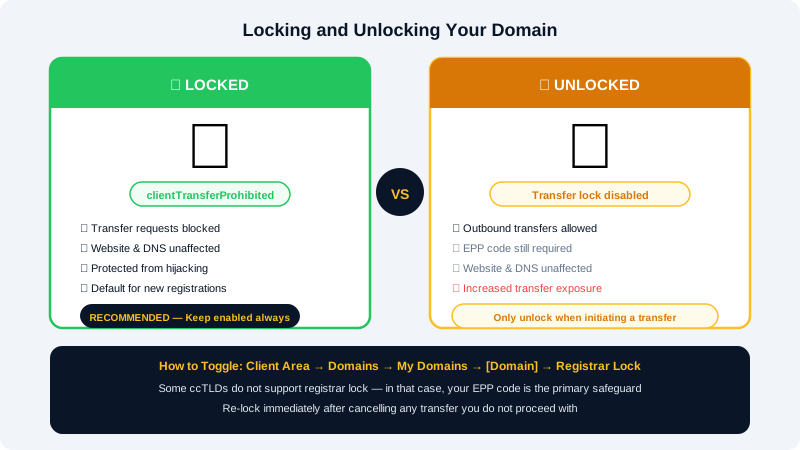
What Does Domain Lock Do?
When your domain is locked, any request to transfer it away from CyclebreezeHost is automatically rejected at the registry level. The lock has no effect on your website, email, or DNS records — it only blocks outbound transfer requests. Most domains support the clientTransferProhibited status, which is the standard ICANN-recognised lock.
Checking Your Domain's Current Lock Status
- Log in to the Client Area at https://clients.cyclebreezehost.com.
- Navigate to Domains > My Domains.
- Click the domain name to open its management page.
- Look for the Registrar Lock section in the left-hand menu or the domain overview panel.
- The current status will be displayed as either Locked or Unlocked.
You can also verify the lock status publicly by running a WHOIS lookup — a locked domain will show clientTransferProhibited in the status field.
How to Lock Your Domain
If your domain is currently unlocked and you want to secure it:
- Open the domain management page in the Client Area (steps 1–4 above).
- Click Registrar Lock in the menu.
- Toggle the lock switch to Enabled or click Lock Domain.
- The page will confirm the change. The
clientTransferProhibitedstatus should appear in WHOIS within a few minutes.
CyclebreezeHost enables registrar lock by default for all newly registered domains. If you transferred a domain to us it may arrive unlocked, so it is worth checking.
How to Unlock Your Domain
You must unlock your domain before initiating an outbound transfer. Unlocking takes effect almost immediately, but make sure to initiate the transfer promptly — leaving a domain unlocked for extended periods increases exposure to unauthorised transfer attempts.
- Open the domain management page in the Client Area.
- Click Registrar Lock in the menu.
- Toggle the switch to Disabled or click Unlock Domain.
- Confirm the action when prompted.
- Proceed to request your EPP / Auth Code and initiate the transfer at the receiving registrar.
Important: Re-lock your domain immediately if you decide not to proceed with the transfer after unlocking it.
When Lock Is Not Available
Some country-code TLDs (ccTLDs) do not support the standard clientTransferProhibited status because their registry rules differ from ICANN's generic TLD policies. If the lock toggle is absent for your domain, it means the registry does not offer this feature. In this case, your EPP code serves as the primary transfer safeguard.
Recommended Security Practices
| Practice | Benefit |
|---|---|
| Keep lock enabled at all times | Blocks unauthorised outbound transfers |
| Use a secure, unique password for your Client Area | Prevents account takeover |
| Enable two-factor authentication (2FA) | Adds a second layer to login |
| Keep registrant contact email up to date | Ensures you receive ICANN transfer notifications |
If you believe your domain may have been tampered with, contact info@cyclebreezehost.com immediately and we will place an administrative hold while we investigate.