Logging In to the WordPress Dashboard
The WordPress dashboard — commonly called wp-admin — is the control centre for your entire website. From here you manage pages, posts, plugins, themes, users, and settings. This article explains how to reach it and what to do if you run into trouble signing in.
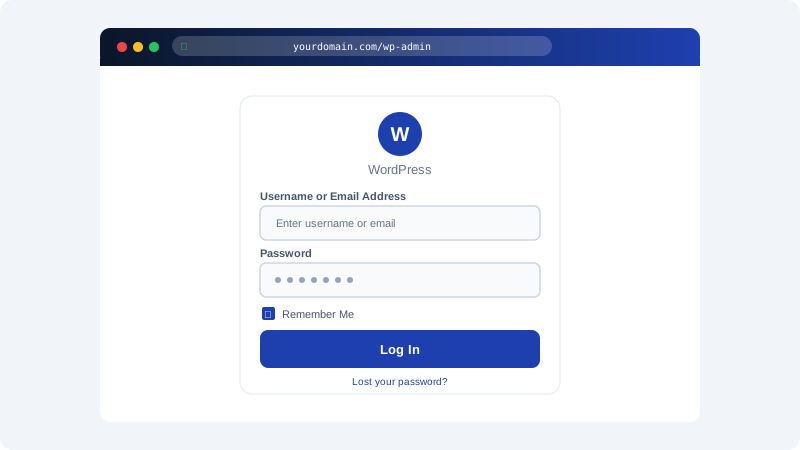
Your Login URL
The standard WordPress login page is located at:
yourdomain.com/wp-admin
Replace yourdomain.com with your actual domain name. When you visit this address, WordPress redirects you to the login form at yourdomain.com/wp-login.php. Both addresses work — bookmarking /wp-admin is the most convenient option.
If you installed WordPress into a subdirectory (for example, yourdomain.com/blog), your login URL will be:
yourdomain.com/blog/wp-admin
Logging In
- Open your browser and navigate to
yourdomain.com/wp-admin. - Enter your Username or the Email Address linked to your admin account.
- Enter your Password.
- Tick Remember Me if you want to stay logged in on this device.
- Click Log In.
You will land on the Dashboard home screen, which shows a summary of your site's activity and quick-access widgets.
Finding Your Credentials
If you installed WordPress through Softaculous in cPanel, your credentials are the username and password you chose during the installation wizard. You should also have received a confirmation email from Softaculous containing the site URL and admin URL.
If you need to look up the admin username or reset the password through Softaculous:
- Log in to cPanel via clients.cyclebreezehost.com.
- Open Softaculous Apps Installer.
- Click WordPress, then go to Installations.
- Find your site and click the Edit (pencil) icon to view or change the admin username and password.
Resetting a Forgotten Password
Option 1 — Lost Password Link
- Go to
yourdomain.com/wp-admin. - Click Lost your password? below the login form.
- Enter your username or email address and click Get New Password.
- WordPress will send a reset link to the registered email address.
Option 2 — Reset via phpMyAdmin
Use this method if you no longer have access to the admin email address.
- In cPanel, open phpMyAdmin.
- Select your WordPress database from the left panel.
- Click the
wp_userstable (the prefix may differ, e.g.wp_abc123_users). - Click Edit next to your admin user row.
- In the
user_passfield, select MD5 from the function dropdown and type your new password in the value field. - Click Go to save the change.
Staying Secure
- Avoid using
adminas your username — it is the most common guess in automated brute-force attacks. - Use a strong, unique password and store it in a password manager.
- Consider a security plugin that limits failed login attempts and enables two-factor authentication.
- Always access wp-admin over HTTPS. CyclebreezeHost provides a free Let's Encrypt SSL certificate via AutoSSL — verify it is active in cPanel under SSL/TLS Status.
Troubleshooting Login Issues
| Symptom | Likely Cause | Fix |
|---|---|---|
| "Sorry, that username is not registered" | Wrong username or email | Check Softaculous for the correct username |
| Login page keeps reloading | Cookie or redirect issue | Clear browser cookies and cache, then try again |
| Blank white page after login | Plugin or theme conflict | Rename wp-content/plugins via cPanel File Manager to disable all plugins |
| "Too many failed attempts" lockout | Security plugin blocking you | Wait for the lockout to expire or whitelist your IP in the plugin settings |
For further help, reach out to CyclebreezeHost support at info@cyclebreezehost.com — we are available around the clock.