How to Log In to WHM
WHM (Web Host Manager) is the administrative control panel for your CyclebreezeHost reseller account. You use it to create and manage your clients' cPanel accounts, define hosting packages, and configure server-level settings. This article explains every way to access WHM and how to resolve common login issues.
What You Need Before You Start
- Your WHM username and password (sent in your reseller welcome email from CyclebreezeHost)
- Your server hostname or IP address (also in the welcome email)
- A modern browser — Chrome, Firefox, Edge, or Safari all work
Method 1: Log In via the CyclebreezeHost Client Area
This is the easiest method because you do not need to remember your server hostname.
- Go to
https://clients.cyclebreezehost.comand sign in with your CyclebreezeHost account credentials. - Click Services in the top navigation, then select your reseller hosting plan.
- On the product page, click Log in to WHM (or Manage).
- You will be taken directly into WHM using single sign-on — no separate password required.
Method 2: Log In Directly via URL
If you know your server's hostname or IP address, you can reach WHM directly.
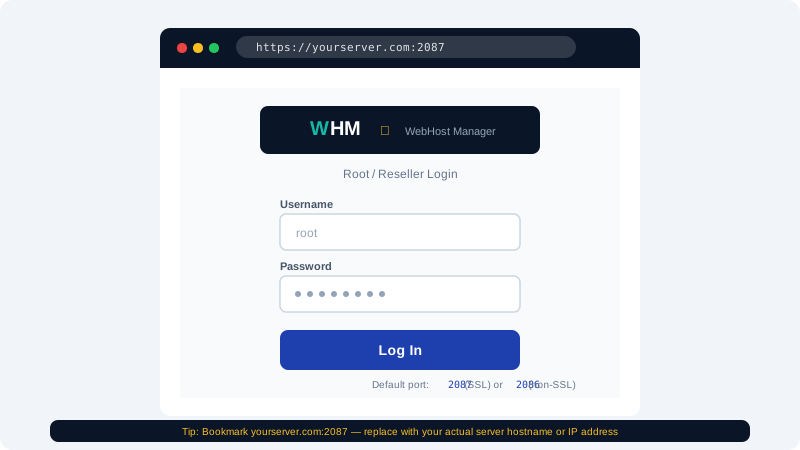
- Open your browser and go to
https://yourserver:2087— replaceyourserverwith the hostname or IP from your welcome email. - Your browser may show a security warning for the server's default SSL certificate. Click Advanced and then Proceed (or the equivalent in your browser). This is expected until you configure a trusted certificate.
- Enter your Username and Password on the WHM login screen.
- Click Log In.
Tip: Bookmark
https://yourserver:2087once you have confirmed it works so you can access WHM quickly in the future.
Method 3: Log In as Root via SSH (Advanced)
If you have root access on a VPS or dedicated server, you can access WHM by navigating to the same URL using the root credentials. Reseller accounts on shared infrastructure typically use a reseller-level username rather than root.
Understanding WHM Access Levels
| Level | Username | What They Can Do |
|---|---|---|
| Root | root | Full server control (VPS/dedicated) |
| Reseller | Your reseller username | Create/manage cPanel accounts, packages, DNS |
| cPanel user | Client's username | Manage their own hosting only |
As a reseller on shared infrastructure, you log in with your reseller username, which restricts actions to your own accounts and packages. This is by design.
Troubleshooting Login Issues
Forgot your password?
- Log in to the CyclebreezeHost Client Area at
https://clients.cyclebreezehost.com. - Navigate to your reseller product.
- Use the Change Password option to set a new WHM password.
Getting a "connection refused" or "site can't be reached" error?
- Confirm you are using port
2087(not 80 or 443). - Check that your server hostname or IP is correct.
- Your IP may be temporarily blocked by the server firewall after repeated failed login attempts. Contact CyclebreezeHost support to whitelist your IP.
SSL certificate warning on every visit?
- This is normal if you have not yet installed a trusted certificate on the server hostname. You can suppress it by installing a valid SSL certificate for your server's hostname in WHM under SSL/TLS > Manage SSL Hosts.
Keeping Your WHM Login Secure
- Use a strong, unique password and store it in a password manager.
- Never share your WHM credentials with clients — they should only ever have their cPanel login.
- Enable Two-Factor Authentication in WHM under WHM > Security Center > Two-Factor Authentication.
If you need assistance accessing your WHM account, contact CyclebreezeHost support 24/7 at info@cyclebreezehost.com or via the Client Area at https://clients.cyclebreezehost.com.