How to Log In to Your Client Area
The CyclebreezeHost Client Area is your billing and account management dashboard. From here you can view and pay invoices, manage your hosting services and domains, open support tickets, update your contact details, and access cPanel for your hosting account.
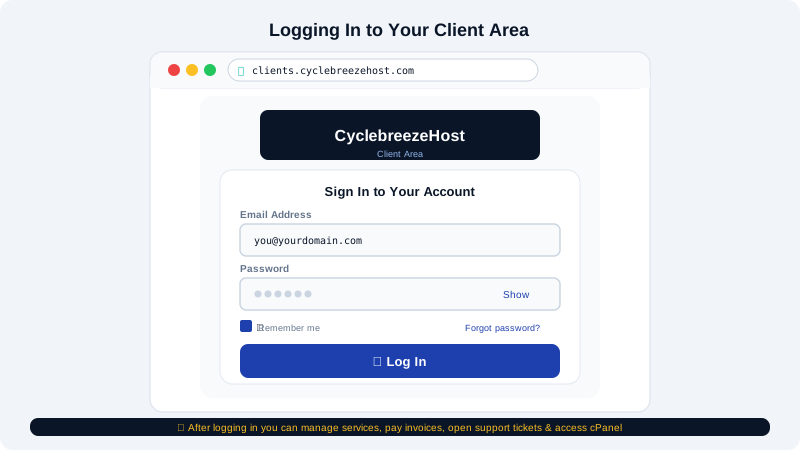
Accessing the Client Area
The Client Area is located at:
https://clients.cyclebreezehost.com
Bookmark this address for quick access.
Logging In
- Go to https://clients.cyclebreezehost.com.
- Click Login in the top navigation.
- Enter the Email Address you used when you registered your account.
- Enter your Password.
- Click Login.
You will be taken to your account dashboard, which summarises your active services, recent invoices, and open support tickets.
Resetting Your Password
If you have forgotten your password:
- On the login page, click Forgot Password?
- Enter your registered email address and click Submit.
- Check your inbox for a password reset email from CyclebreezeHost. Click the link inside.
- Choose a new password and confirm it, then click Save Changes.
The reset link expires after a short time. If it has expired, repeat the process to receive a new link.
If you no longer have access to the email address on your account, open a support request from another email address and our team will verify your identity before making any changes.
Two-Factor Authentication (2FA)
For additional security, you can enable two-factor authentication on your account:
- Log in to the Client Area.
- Click your name in the top-right corner and select Security Settings.
- Under Two-Factor Authentication, click Click here to enable.
- Scan the QR code with an authenticator app (such as Google Authenticator or Authy) and enter the verification code to confirm.
Once enabled, you will be prompted for a one-time code every time you log in.
Navigating the Dashboard
| Section | What you can do |
|---|---|
| Services | View your active hosting plans, click through to cPanel |
| Domains | Manage registered domains, update nameservers, renew |
| Billing | View outstanding and paid invoices, add payment methods |
| Support | Open tickets, view ticket history, browse the Knowledge Base |
| Account | Update contact details, change password, manage security |
Accessing cPanel from the Client Area
- Log in to the Client Area.
- Click Services → My Services.
- Find your hosting plan and click Manage.
- Click Login to cPanel to open your hosting control panel directly, without needing a separate cPanel password.
Troubleshooting Login Issues
| Problem | Solution |
|---|---|
| "Invalid email or password" | Check for typos; remember the email is case-sensitive in some browsers |
| Password reset email not arriving | Check your spam folder; add info@cyclebreezehost.com to your contacts |
| Account locked after multiple attempts | Wait a few minutes then try again, or contact support |
| Forgotten registered email | Contact support at info@cyclebreezehost.com with your domain name for account recovery |
For help with your Client Area account, email info@cyclebreezehost.com or use live chat at https://clients.cyclebreezehost.com. Support is available 24/7.