Managing and Suspending Client Accounts
As a reseller, you are responsible for the lifecycle of every cPanel account in your WHM. This includes modifying resource limits, suspending accounts for non-payment or policy violations, reinstating suspended accounts, and permanently terminating accounts that are no longer needed. This article covers all of these operations.
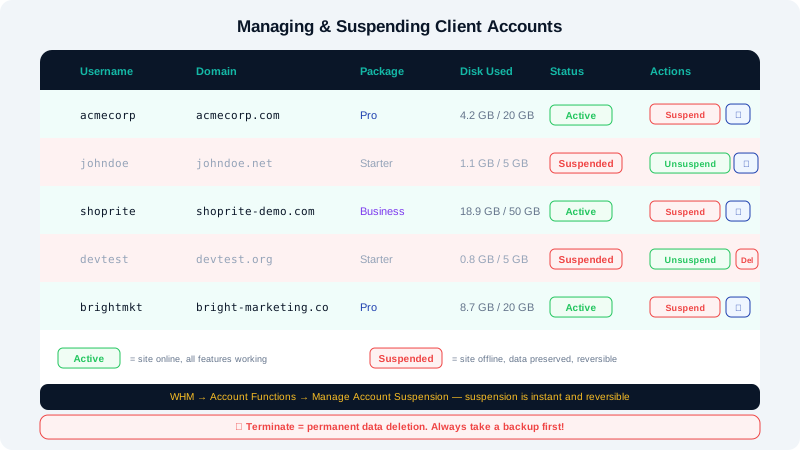
Viewing All Accounts
Before taking any action, get an overview of your accounts:
- Log in to WHM at
https://yourserver:2087. - Navigate to Account Information > List Accounts.
This page shows every cPanel account under your reseller, along with their domain, username, package, disk usage, and current status (active or suspended).
Modifying an Account
Use Modify an Account to change any setting for an existing client account — including upgrading their package, updating their contact email, or adjusting individual resource limits.
- In WHM, go to Account Functions > Modify an Account.
- Use the search or dropdown to select the account by domain name.
- Edit the fields you want to change:
- Package — Change the assigned package to upgrade or downgrade the account.
- Disk Space / Bandwidth — Override the package limits for this specific account.
- Password — Reset the cPanel login password.
- Contact Email — Update the address where cPanel notifications are sent.
- Click Save.
Suspending an Account
Suspension is a reversible action. A suspended account's files are preserved, but the website goes offline and the client cannot log into cPanel. This is the appropriate action for non-payment or a temporary policy hold.
- Go to Account Functions > Manage Account Suspension in WHM.
- Select Suspend an Account from the action menu.
- Search for the account by domain or username.
- Enter a Reason for the suspension — this is for your internal records and is displayed to you (not necessarily to the client).
- Click Suspend.
The account's website will immediately show a suspension notice, and the client will be unable to log in to cPanel.
Unsuspending an Account
Once the client resolves the issue (e.g., pays their invoice), you can restore access instantly.
- Go to Account Functions > Manage Account Suspension.
- Select Unsuspend an Account.
- Find the account and click Unsuspend.
The website and cPanel access are restored immediately.
Changing the Suspension Reason
- Go to Account Information > List Suspended Accounts.
- Find the account and click Edit Reason.
- Update the reason text and save.
Terminating an Account
Termination is permanent and irreversible. All files, databases, emails, and DNS records for the account are deleted. Only terminate an account when you are certain the data is no longer needed.
- In WHM, go to Account Functions > Terminate an Account.
- Search for the account.
- Read the confirmation warning carefully.
- Tick Confirm Account Termination and click Terminate.
Best practice: Before terminating, download a full cPanel backup of the account (Backup > Generate a Full Backup from within cPanel, or use JetBackup in WHM) in case the client requests their data later.
Locking an Account (Password-Protect Only)
If you need to prevent a client from logging in without taking their site offline, you can change their cPanel password without suspending the account.
- Go to Account Functions > Modify an Account.
- Set a new password the client does not know.
- Save.
Their website remains live, but they cannot access cPanel until you restore the password.
Bulk Actions
WHM does not offer a bulk suspend/terminate button by default, but you can manage multiple accounts efficiently from the List Accounts screen by filtering by package or status and handling them one at a time.
Quick Reference
| Action | Location in WHM | Reversible? |
|---|---|---|
| Modify limits/package | Account Functions > Modify an Account | Yes |
| Suspend | Account Functions > Manage Account Suspension | Yes |
| Unsuspend | Account Functions > Manage Account Suspension | Yes |
| Terminate | Account Functions > Terminate an Account | No |
| Reset password | Account Functions > Modify an Account | Yes |
For help with account management or to escalate a policy issue, contact CyclebreezeHost support 24/7 at info@cyclebreezehost.com or open a ticket at https://clients.cyclebreezehost.com.