Managing DNS Records (A, CNAME, MX, TXT)
DNS records control how your domain behaves — where your website loads from, where your email is delivered, and how other services verify your domain ownership. This guide explains how to manage DNS records through cPanel's Zone Editor.
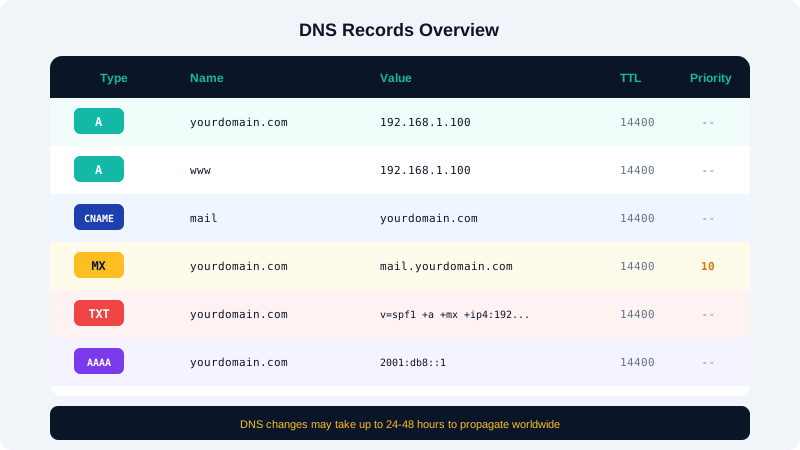
Accessing the Zone Editor
- Log in to your cPanel dashboard.
- Navigate to the Domains section and click Zone Editor.
- Find your domain in the list and click Manage to view and edit all DNS records.
Types of DNS Records
A Record (Address Record)
An A record maps a domain or subdomain to an IPv4 address. This is the most fundamental DNS record.
- Name: Your domain (e.g.,
yourdomain.com) or a subdomain (e.g.,shop.yourdomain.com) - Value: The IPv4 address of the server (e.g.,
192.0.2.1) - Use case: Pointing your domain or subdomains to a specific server.
CNAME Record (Canonical Name)
A CNAME record creates an alias that points one domain name to another domain name.
- Name: A subdomain (e.g.,
www) - Value: The target domain (e.g.,
yourdomain.com) - Use case: Making
www.yourdomain.compoint toyourdomain.com, or pointing a subdomain to an external service like Shopify or Mailchimp landing pages.
Note: CNAME records cannot be set on the root domain itself. Use an A record for the root domain.
MX Record (Mail Exchanger)
MX records tell the internet where to deliver email for your domain.
- Priority: A number indicating preference. Lower numbers have higher priority (e.g., 0 or 10).
- Value: The mail server hostname (e.g.,
mail.yourdomain.com). - Use case: Directing email to your hosting server's mail service or to a third-party provider like Google Workspace or Microsoft 365.
TXT Record (Text Record)
TXT records store text-based information and are used for various verification and security purposes.
- Name: Your domain or subdomain
- Value: The text string provided by the service you are configuring
- Use case: SPF records for email authentication, domain verification for Google and other services, DKIM keys, and DMARC policies.
Adding a DNS Record
- In the Zone Editor, click Add Record next to your domain.
- Select the record type (A, CNAME, MX, or TXT).
- Fill in the Name, TTL, and Record (value) fields.
- Click Add Record to save.
Editing or Deleting Records
- To edit a record, click the Edit button next to it, make your changes, and click Save Record.
- To delete a record, click the Delete button and confirm. Be cautious when deleting records, as removing essential records can cause your website or email to stop working.
TTL Settings
TTL (Time to Live) determines how long DNS resolvers cache a record before checking for updates. The default is 14400 seconds (4 hours). Lower TTL values (e.g., 300 seconds) are useful when you plan to make changes soon and want them to propagate quickly. After the change is stable, increase TTL back to the default to reduce DNS lookup overhead.
Common Configurations
| Purpose | Record Type | Example Value |
|---|---|---|
| Point domain to server | A | 192.0.2.1 |
| Redirect www to root domain | CNAME | yourdomain.com |
| Email delivery to hosting server | MX | mail.yourdomain.com (priority 0) |
| SPF email authentication | TXT | v=spf1 +a +mx ~all |
If you are unsure which records to modify, contact CyclebreezeHost support before making changes to avoid disrupting your services.