Managing Email Storage and Quotas
Every email account on your hosting plan has a storage quota — the maximum amount of disk space it can use. When a mailbox reaches its quota, incoming messages are bounced back to the sender and you cannot receive new mail until space is freed. This guide explains how to check, adjust, and manage mailbox quotas.
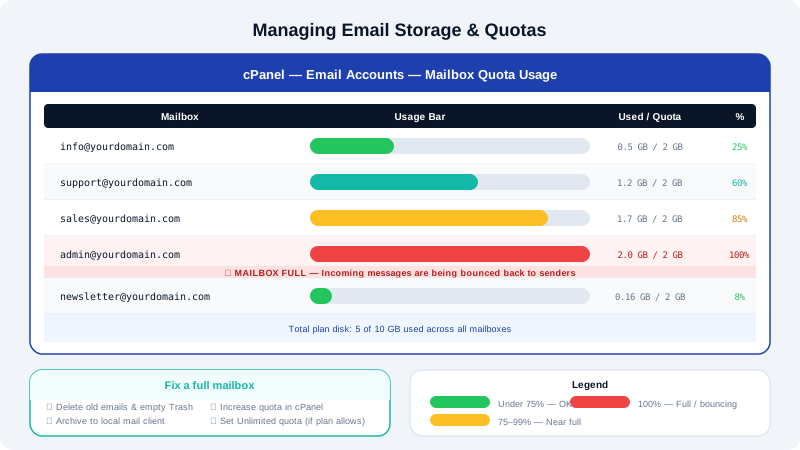
Checking Current Mailbox Usage
- Log in to cPanel at
https://yourdomain.com:2083. - Click Email Accounts under the Email section.
- The list shows each mailbox with a usage bar and a figure such as
245 MB / 1 GB. A red bar indicates the mailbox is near or at its limit.
Changing a Mailbox Quota
- In cPanel, go to Email Accounts.
- Click Manage next to the mailbox you want to adjust.
- Under Storage Space, enter a new value in megabytes, or select Unlimited to remove the cap.
- Click Update Email Settings.
Setting a quota to Unlimited means the mailbox can grow until the hosting account's overall disk allocation is exhausted. It is good practice to set realistic quotas per mailbox to prevent one account from consuming all available space.
Freeing Space in a Full Mailbox
If a mailbox is at its limit, you need to delete messages before new mail can be delivered.
Option 1 — Delete messages in Roundcube webmail
- Log in at
https://mail.yourdomain.com. - Empty the Trash and Spam folders first — these often hold large volumes of messages that are no longer needed.
- In the Inbox and other folders, select and delete old messages, especially those with large attachments.
- Right-click the Trash folder and choose Empty to permanently remove deleted items and reclaim space immediately.
Option 2 — Delete messages from your mail client
If you use Outlook, Apple Mail, or a similar IMAP client:
- Move messages you want to keep to a local folder on your computer (drag them out of the IMAP account into a local folder in your client).
- Delete the originals from the server-side folders.
- Empty the server Trash folder to free space immediately.
Option 3 — Increase the quota temporarily
If you need incoming mail to resume urgently while you tidy up, increase the quota in cPanel first, then delete old messages at your convenience.
Managing Overall Hosting Disk Usage
Individual mailbox quotas count toward your hosting plan's total disk allocation. To see how much space your email is using overall:
- In cPanel, scroll to the Statistics panel on the right-hand side.
- Look at Disk Usage — it shows a breakdown including email storage.
- Click Disk Usage for a full per-directory report.
If your hosting account is consistently running low on disk space, consider upgrading your plan via the client area at https://clients.cyclebreezehost.com.
Best Practices for Email Storage
- Archive, don't accumulate — Download and archive old email to your local machine periodically, especially messages with large attachments.
- Set sensible quotas — Allocate quotas that reflect actual usage; 500 MB to 1 GB is ample for most business mailboxes.
- Monitor regularly — Check the Email Accounts page every few months to catch any mailbox approaching its limit before it starts bouncing mail.
- Clean up mailing list subscriptions — Unsubscribe from newsletters you no longer read to reduce ongoing storage growth.
Troubleshooting
| Problem | Solution |
|---|---|
| Senders receiving "mailbox full" bounces | Increase the quota or delete messages immediately |
| Usage not decreasing after deleting mail | Empty the Trash folder — deleted messages remain on disk until Trash is purged |
| Disk usage rising despite deleting email | Check other cPanel directories (files, databases) via the Disk Usage tool |
| Cannot update quota in cPanel | Your hosting plan may have a maximum limit — contact support to discuss an upgrade |
For assistance with disk quotas or storage management, contact CyclebreezeHost at info@cyclebreezehost.com or open a ticket at https://clients.cyclebreezehost.com. Our team is available 24/7.