Understanding and Changing File Permissions
File permissions control who can read, write to, or execute files on your hosting account. Incorrect permissions are one of the most common causes of website errors — a 403 Forbidden response, a PHP script that refuses to run, or a file that cannot be written by an application. Understanding the permission system lets you fix these issues quickly and keep your account secure.
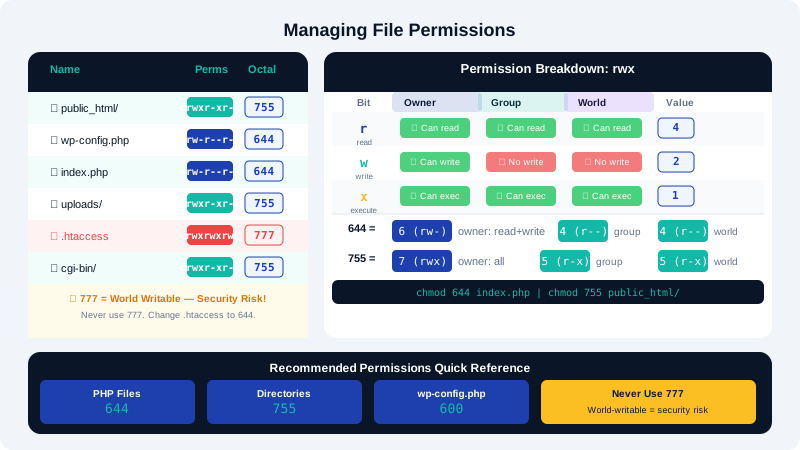
How Unix Permissions Work
Every file and directory has three permission sets:
| Set | Applies to |
|---|---|
| Owner | The cPanel user who owns the file (you) |
| Group | The group associated with the account |
| World | Everyone else (other users, the web server) |
Each set can have three permission types:
| Symbol | Value | Meaning |
|---|---|---|
r | 4 | Read |
w | 2 | Write |
x | 1 | Execute |
Permissions are expressed as an octal number by adding the values together. For example, rwx = 4+2+1 = 7, r-x = 4+0+1 = 5, r-- = 4+0+0 = 4.
A permission of 755 means: owner can read/write/execute (7), group can read/execute (5), world can read/execute (5).
Recommended Permissions
| Item | Correct Permission | Reason |
|---|---|---|
| Regular files | 644 | Owner can edit; web server can read |
| PHP/script files | 644 | Never make scripts world-executable |
| Directories | 755 | Owner full access; others can traverse |
wp-config.php | 640 or 600 | Sensitive — restrict to owner only |
| Uploaded media | 644 | Web server must read; no write needed |
.htaccess | 644 | Web server reads it; owner edits it |
Never set files to 777. This grants write access to everyone on the server and is both a security risk and a violation of most hosting policies.
Changing Permissions in cPanel File Manager
- Log in to cPanel at
clients.cyclebreezehost.com. - Go to Files → File Manager.
- Click the Settings gear icon and check Show Hidden Files so
.htaccessand other dot-files are visible. - Navigate to the file or folder you want to change.
- Right-click the item and select Change Permissions, or select it and click Permissions in the toolbar.
- Check or uncheck the boxes in the Owner, Group, and World columns, or type the octal number directly into the field at the bottom.
- For directories, check Recurse into subdirectories if you want to apply the change to all contents — use this with care.
- Click Change Permissions to apply.
Changing Permissions via SSH
If you have SSH access, use the chmod command:
# Set a single file
chmod 644 index.php

# Set a directory
chmod 755 public_html/uploads

# Recursively set all files in a directory to 644
find /home/username/public_html -type f -exec chmod 644 {} \;

# Recursively set all directories to 755
find /home/username/public_html -type d -exec chmod 755 {} \;
Replace username with your actual cPanel username.
Diagnosing Permission Errors
- 403 Forbidden on a directory: The directory is likely
700or711. Change it to755. - 403 Forbidden on a file: The file may be
600or not readable by the web server. Change it to644. - PHP cannot write to a folder (e.g., uploads failing): The folder needs to be
755or775. Avoid777. - WordPress permissions reset itself: A plugin or cron job may be changing them. Check plugin settings.
CloudLinux and CageFS Notes
CyclebreezeHost shared hosting runs under CloudLinux LVE, which adds an additional security layer. Each account runs as its own user inside CageFS, so files set to 777 are less of a cross-account risk than on traditional shared hosting — but they still expose your own account to unnecessary write access and should be avoided.
For further help diagnosing a permissions issue, contact CyclebreezeHost support at info@cyclebreezehost.com. The team is available 24/7.