Managing FTP Accounts
FTP (File Transfer Protocol) allows you to upload, download, and manage files on your hosting account using a dedicated file transfer client. This guide covers creating FTP accounts, connecting with a client, and keeping your transfers secure.
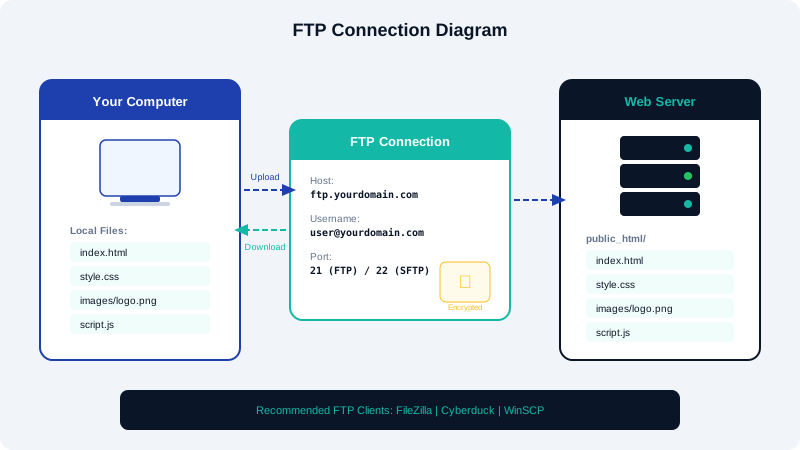
What Is FTP?
FTP is a standard protocol for transferring files between your computer and your web server. It is commonly used to upload website files, themes, plugins, and backups. While cPanel includes a built-in File Manager, FTP is faster and more efficient for transferring large numbers of files or large file sizes.
Creating an FTP Account in cPanel
- Log in to your cPanel dashboard.
- Navigate to the Files section and click FTP Accounts.
- Fill in the required fields:
- Log In: Enter a username for the FTP account (e.g.,
webdev). The full username will include your domain (e.g.,webdev@yourdomain.com). - Password: Set a strong password or use the generator.
- Directory: Specify the directory this FTP user can access. By default, cPanel sets it to a folder matching the username. Set it to
public_htmlto give access to your website root, or leave it more restrictive for limited access. - Quota: Set a storage quota in megabytes or choose Unlimited.
- Log In: Enter a username for the FTP account (e.g.,
- Click Create FTP Account.
Connecting with FileZilla
FileZilla is a free, popular FTP client available for Windows, macOS, and Linux.
- Download and install FileZilla from filezilla-project.org.
- Open FileZilla and enter the following at the top of the window:
- Host:
ftp.yourdomain.comor your server IP address - Username: The full FTP username (e.g.,
webdev@yourdomain.com) - Password: The password you set in cPanel
- Port:
21for FTP or22for SFTP
- Host:
- Click Quickconnect.
- Once connected, your local files appear on the left and your server files on the right. Drag and drop files to upload or download.
SFTP vs FTP
Standard FTP transmits data in plain text, which is a security risk. We strongly recommend using SFTP (SSH File Transfer Protocol) instead, which encrypts all data in transit. To use SFTP, connect on port 22 using your cPanel username and password. SFTP access requires SSH to be enabled on your account.
Restricting Directory Access
For security, create separate FTP accounts for different users or purposes, each with access limited to specific directories. For example, give a web designer access only to the public_html/themes folder rather than the entire account.
Troubleshooting Connection Issues
- Connection refused: Verify the hostname and port. Ensure your IP is not blocked by the server firewall.
- Authentication failed: Confirm you are using the full FTP username including the domain portion.
- Timeout errors: Switch between active and passive FTP modes in your client settings. Passive mode works best in most environments.
- TLS errors: Enable explicit FTP over TLS in your client settings if prompted.
For persistent issues, contact CyclebreezeHost support and include any error messages displayed by your FTP client.