Managing PHP Settings and Resource Limits
PHP has a set of resource limits that control how much memory a script can use, how long it can run, and how large a file upload can be. The default values are conservative and suitable for most sites, but resource-intensive applications — large WordPress sites, e-commerce stores, image-processing scripts — often need higher limits. CyclebreezeHost's cPanel includes the MultiPHP INI Editor to adjust these settings without needing to contact support or edit server configuration files directly.
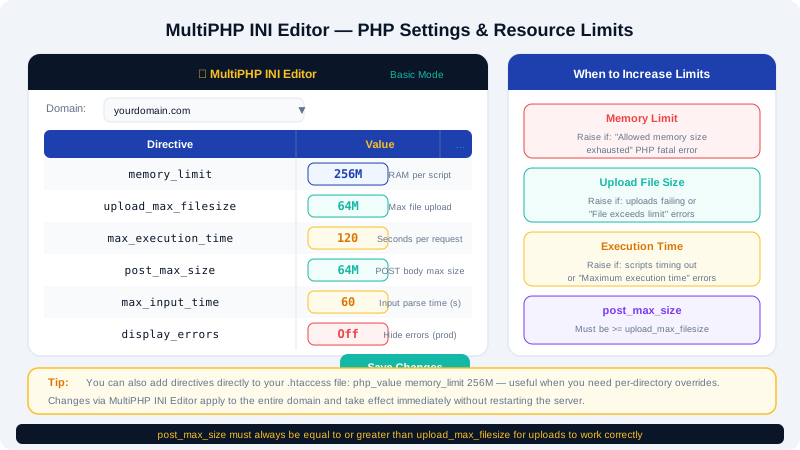
Opening the MultiPHP INI Editor
- Log in to the Client Area at https://clients.cyclebreezehost.com and open cPanel.
- In the Software section, click MultiPHP INI Editor.
- At the top of the page, select the domain you want to configure from the dropdown. Changes apply only to that domain unless you select the root home directory, which applies account-wide.
Key PHP Settings and What They Control
| Directive | Default | What It Controls |
|---|---|---|
memory_limit | 256M | Maximum RAM a single PHP script can use |
max_execution_time | 30 | Maximum seconds a script can run before being killed |
max_input_time | 60 | Maximum seconds PHP will spend parsing request data |
upload_max_filesize | 64M | Maximum size of a single uploaded file |
post_max_size | 64M | Maximum total size of all data in a POST request |
max_input_vars | 1000 | Maximum number of form fields processed per request |
display_errors | Off | Whether PHP errors are shown in the browser |
log_errors | On | Whether PHP errors are written to the error log |
Note: post_max_size must always be equal to or larger than upload_max_filesize. If you increase upload_max_filesize to 128M, set post_max_size to at least 128M as well.
Changing a Setting
Basic mode (recommended for common settings):
- In the MultiPHP INI Editor, choose the Basic Mode tab.
- You will see sliders and dropdowns for the most commonly changed settings.
- Adjust the values as needed and click Apply.
Editor mode (for full control):
- Choose the Editor Mode tab.
- The full
php.iniconfiguration is displayed as editable text. - Find the directive you want to change and update its value — for example, change
memory_limit = 256Mtomemory_limit = 512M. - Click Save.
Common Scenarios and Recommended Values
Uploading large images or videos:
upload_max_filesize = 256M
post_max_size = 256M
max_execution_time = 120
Running a large WordPress multisite or WooCommerce store:
memory_limit = 512M
max_execution_time = 120
max_input_vars = 3000
Running a long-running import or data processing script:
max_execution_time = 300
max_input_time = 300
memory_limit = 512M
Importing a large database via phpMyAdmin:
upload_max_filesize = 512M
post_max_size = 512M
max_execution_time = 600
Using .htaccess as an Alternative
If you prefer, you can set PHP directives in your .htaccess file using php_value (for strings and numbers) or php_flag (for on/off settings):
php_value memory_limit 512M
php_value upload_max_filesize 256M
php_value post_max_size 256M
php_value max_execution_time 120
php_flag display_errors Off
php_flag log_errors On
Place these lines in the .htaccess file inside the document root of the domain you want to configure. Settings here override the account-level php.ini values.
Verifying Your Changes
After saving, verify the new settings are active:
- Create a file called
phpinfo.phpinpublic_htmlcontaining<?php phpinfo(); ?>. - Visit
https://yourdomain.com/phpinfo.phpin your browser. - Search for the directive name (for example,
memory_limit) and confirm the Local Value column shows your updated value. - Delete
phpinfo.phpimmediately — leaving it publicly accessible is a security risk.
Troubleshooting
- Changes not taking effect: Make sure you selected the correct domain in the MultiPHP INI Editor. If you used both
php.iniand.htaccess, the.htaccessvalue takes precedence. - White screen after saving: You may have introduced a syntax error. Return to the Editor Mode and recheck your changes, or restore the previous values.
- Upload still failing despite increased limits: Also check the web server's own body size limit. If you continue to see upload errors, open a support ticket — the CyclebreezeHost team can check whether a server-level limit is in place.
For further assistance tuning PHP for your specific application, contact CyclebreezeHost at info@cyclebreezehost.com or raise a support ticket in the Client Area. Support is available 24/7.