Managing Your Server Firewall
A firewall is your server's first line of defence against unauthorised access and network-based attacks. On CyclebreezeHost VPS and dedicated servers, you configure the firewall at the operating system level. This guide covers the two most common tools: UFW (used on Ubuntu and Debian) and firewalld (used on AlmaLinux and CentOS).
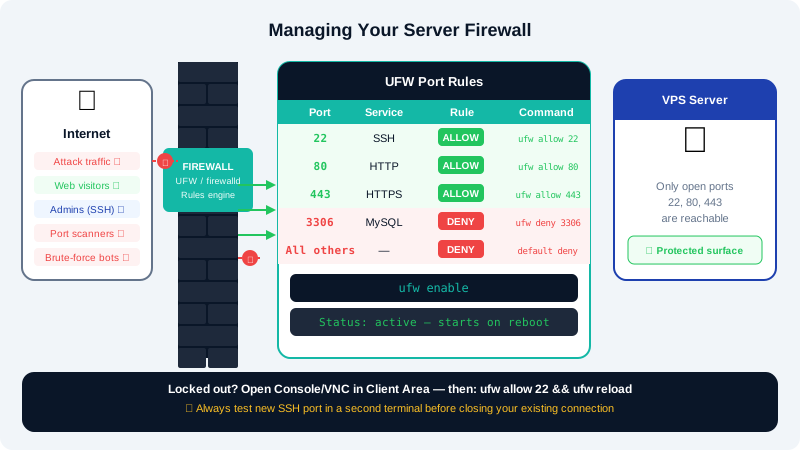
Why You Need a Firewall
By default, a fresh Linux server has all ports accessible to the internet. Without a firewall, anyone can attempt to connect to any port on your server. A correctly configured firewall ensures only the services you intentionally expose are reachable.
UFW — Ubuntu and Debian
UFW (Uncomplicated Firewall) is a straightforward command-line tool that manages iptables rules with simple commands.
Check the Current Status
ufw status verbose
If UFW is inactive, the output will say Status: inactive and no rules are in effect.
Basic Setup
Allow the ports your server needs before enabling the firewall, so you do not lock yourself out:
ufw allow 22        # SSH
ufw allow 80        # HTTP
ufw allow 443       # HTTPS
Then enable the firewall:
ufw enable
Type y when prompted. UFW will now be active and start automatically on reboot.
Common UFW Commands
| Task | Command |
|---|---|
| Allow a port | ufw allow 3306 |
| Allow a port for TCP only | ufw allow 25/tcp |
| Block a port | ufw deny 3306 |
| Delete a rule | ufw delete allow 3306 |
| Allow from a specific IP | ufw allow from 203.0.113.10 |
| Allow from IP to specific port | ufw allow from 203.0.113.10 to any port 22 |
| List rules with numbers | ufw status numbered |
| Delete a rule by number | ufw delete 3 |
| Disable the firewall | ufw disable |
| Reload rules | ufw reload |
Changing the SSH Port
If you changed SSH to a non-standard port (e.g., 2222), allow that port and remove the old rule:
ufw allow 2222
ufw delete allow 22
ufw reload
Always test the new port in a second terminal session before closing your existing connection.
firewalld — AlmaLinux and CentOS
firewalld uses zones to group rules. The public zone applies to most server setups.
Check the Current Status
firewall-cmd --state
firewall-cmd --list-all
Allow and Remove Services
firewall-cmd --permanent --add-service=ssh
firewall-cmd --permanent --add-service=http
firewall-cmd --permanent --add-service=https
firewall-cmd --reload
To allow a specific port number:
firewall-cmd --permanent --add-port=3306/tcp
firewall-cmd --reload
To remove a rule:
firewall-cmd --permanent --remove-port=3306/tcp
firewall-cmd --reload
Block a Specific IP Address
firewall-cmd --permanent --add-rich-rule='rule family="ipv4" source address="203.0.113.45" reject'
firewall-cmd --reload
Recommended Open Ports by Use Case
| Server Role | Ports to Allow |
|---|---|
| Basic web server | 22 (SSH), 80 (HTTP), 443 (HTTPS) |
| Mail server | 22, 25, 80, 143, 443, 587, 993 |
| cPanel/WHM | 22, 80, 443, 2082, 2083, 2086, 2087 |
| Database server (internal only) | 22, 3306 from trusted IPs only |
| Custom SSH port | New SSH port, 80, 443 |
Recovering from a Lockout
If you accidentally lock yourself out of SSH, use the Console/VNC feature in your CyclebreezeHost Client Area to regain access:
- Log in at https://clients.cyclebreezehost.com.
- Open your server and click Server Control Panel.
- Launch the Console or VNC session.
- Log in directly and adjust your firewall rules:
- UFW:
ufw allow 22 && ufw reload - firewalld:
firewall-cmd --permanent --add-service=ssh && firewall-cmd --reload
- UFW:
For assistance with firewall configuration, contact CyclebreezeHost support at info@cyclebreezehost.com or open a ticket at https://clients.cyclebreezehost.com. Our team is available 24/7.