Opening and Managing Support Tickets
Support tickets are the primary way to get account-specific help from the CyclebreezeHost team. Tickets create a written record of your issue and our response, and they ensure your request is routed to the right team — technical support, billing, or domains. Our team is available 24/7 and aims to respond within two hours.
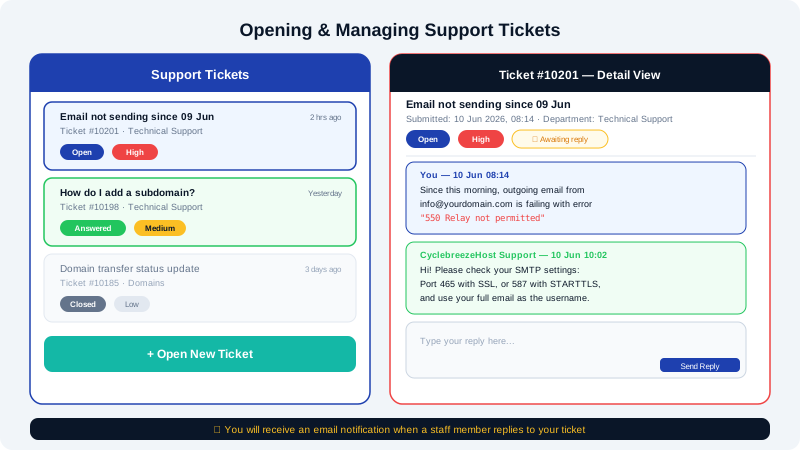
Opening a New Support Ticket
- Log in to the Client Area at https://clients.cyclebreezehost.com.
- Click Support in the top navigation, then select Open New Ticket.
- Choose the most appropriate Department for your issue:
- Technical Support — hosting, email, cPanel, website errors
- Billing — invoices, payments, upgrades, cancellations
- Domain Support — domain transfers, DNS, registration issues
- Select the Related Service from the dropdown if your question is about a specific hosting plan or domain — this helps the team pull up your account details immediately.
- Enter a clear Subject line that summarises your issue (e.g., "Website returning 500 error after WordPress update").
- In the Message field, describe the issue in as much detail as possible. Include:
- What you were trying to do
- What you expected to happen
- What actually happened
- Any error messages (paste them verbatim)
- Steps you have already tried
- Set a Priority level — use High only for issues affecting your live website or email.
- Attach any relevant screenshots or log files if helpful.
- Click Submit.
You will receive a confirmation email with your ticket ID. Keep this for reference.
Viewing and Replying to Existing Tickets
- Log in to the Client Area.
- Click Support → My Tickets.
- Click on a ticket subject to open the conversation thread.
- To add more information or reply to our response, scroll to the bottom of the thread and type in the Reply box.
- Click Submit Reply.
Replying to the ticket email directly also adds your message to the thread.
Understanding Ticket Statuses
| Status | Meaning |
|---|---|
| Open | Submitted and awaiting a response from our team |
| Answered | Our team has replied — please review and respond if needed |
| Customer Reply | You have replied and we are reviewing your response |
| On Hold | Waiting for more information or a third party |
| Closed | Resolved — no further action needed |
If a ticket is marked Answered but your issue is not resolved, reply to keep it open. Tickets may be automatically closed after a period of inactivity following an answer.
Tips for Faster Resolution
- One issue per ticket — separate problems in separate tickets so nothing gets lost.
- Be specific — "my website is broken" is harder to debug than "my homepage shows a blank white page since I updated the PHP version."
- Include your domain name — always mention which domain the issue affects.
- Share error messages — copy full error text rather than paraphrasing.
- Check the Knowledge Base first — many common issues are covered at https://clients.cyclebreezehost.com/knowledgebase and can be resolved without waiting for a ticket response.
Emergency Contact
For urgent issues such as a completely offline website or compromised account, mark your ticket priority as High and include "URGENT" in the subject line. You can also contact us directly at info@cyclebreezehost.com.
Our support team monitors tickets around the clock, every day of the year.