How to Park a Domain (Domain Alias)
Parking a domain — also called a domain alias — lets you point one or more additional domain names at your existing website. Visitors who type the parked domain into their browser see the exact same content as your primary site. This is useful for protecting brand variations, common misspellings, or country-code domains (for example, parking yourbrand.net and yourbrand.com onto your primary yourbrand.com).
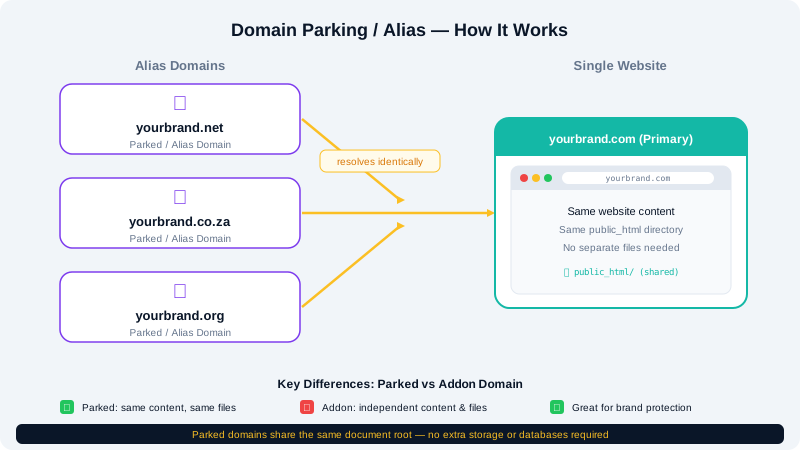
A parked domain shares the same document root as your main site and does not require separate files or databases.
Before You Begin
- You must own the domain you want to park.
- If the domain is registered outside CyclebreezeHost, update its nameservers to point to CyclebreezeHost, or add an A record pointing to your hosting account's IP address. You can find your server's IP in the Account Information section of cPanel.
- DNS changes may take up to 48 hours to propagate, though most resolve within a few hours.
Step 1 — Add the Parked Domain in cPanel
- Log in to the Client Area at https://clients.cyclebreezehost.com and open cPanel for your account.
- In the Domains section, click Aliases (this is cPanel's name for parked domains).
- In the Domain to Park field, enter the domain name you want to park (for example,
yourbrand.net). - Click Add Domain.
cPanel will add the alias and configure the server to serve your primary site's content when this domain is requested. There is no document root to configure — it automatically shares your main site's files.
Step 2 — Set Up SSL for the Parked Domain
CyclebreezeHost provides free Let's Encrypt SSL certificates via AutoSSL. Once the parked domain's DNS is resolving to your server, AutoSSL will detect it and issue a certificate automatically — usually within a few hours.
To verify SSL status:
- In cPanel, go to SSL/TLS Status.
- Find your parked domain in the list.
- If the certificate is pending, click Run AutoSSL to trigger an immediate check.
Step 3 — Force HTTPS (Optional)
Once your SSL certificate is active, you can redirect all HTTP traffic to HTTPS. Add the following lines to your main site's .htaccess file (located in public_html):
RewriteEngine On
RewriteCond %{HTTPS} off
RewriteRule ^ https://%{HTTP_HOST}%{REQUEST_URI} [L,R=301]
This redirect applies to all domains pointing to your account, including the parked one.
Verifying the Parked Domain Works
After DNS propagation, open a browser and visit your parked domain. You should see exactly the same content as your primary domain. If the parked domain shows a default cPanel page or an error, DNS has not yet fully propagated — wait a few more hours and try again.
Managing and Removing Parked Domains
To view or remove a parked domain:
- Open Aliases in cPanel.
- Your parked domains are listed with a Remove link next to each.
- Click Remove to detach the domain alias. This only removes the alias configuration; it does not affect your primary site or any files.
Parked Domain vs. Addon Domain vs. Subdomain
| Parked Domain | Addon Domain | Subdomain | |
|---|---|---|---|
| Separate website content | No — mirrors main site | Yes | Yes |
| Requires own domain name | Yes | Yes | No |
| Separate email addresses | No | Yes | No |
| Typical use | Brand protection, typo domains | Completely separate site | Section of existing site |
Common Scenarios
- Typo protection: Park
cyclebreezehots.comso visitors who mistype still reach your site. - Country-code domains: Park
.com,.net, and.orgversions all on the same hosting. - Rebranding: Park an old domain name while you transition traffic to a new one.
If you need assistance setting up a domain alias or pointing DNS correctly, reach out to the CyclebreezeHost support team at info@cyclebreezehost.com or open a ticket through the Client Area.