How to Password-Protect a Directory
Directory Privacy lets you place a username and password gate in front of any folder on your hosting account. Anyone who tries to access that URL will see a browser login prompt before any page content is displayed. This is useful for protecting staging sites, admin areas, client files, or any directory you do not want the public to access.
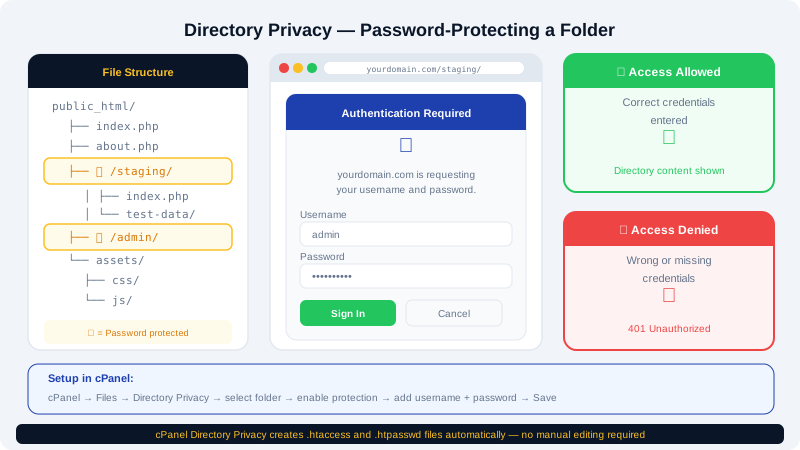
CyclebreezeHost's cPanel includes the Directory Privacy tool (sometimes labelled Password Protect Directories), which sets this up without requiring you to write any .htaccess code manually.
Step 1 — Open Directory Privacy in cPanel
- Log in to the Client Area at https://clients.cyclebreezehost.com and open cPanel.
- In the Files section, click Directory Privacy.
You will see a file browser showing your home directory structure.
Step 2 — Navigate to the Directory You Want to Protect
- Click the folder icon next to
public_htmlto expand it. - Continue navigating until you find the directory you want to protect — for example,
public_html/stagingorpublic_html/admin. - Click the name of the directory (not the folder icon) to open its privacy settings.
If the directory does not exist yet, create it first using File Manager.
Step 3 — Enable Password Protection
- On the directory settings page, tick the checkbox labelled Password protect this directory.
- In the Name the protected directory field, enter a label that will appear in the browser's login prompt — for example,
Restricted AreaorStaff Only. This is just a display label, not a security setting. - Click Save.
cPanel will write the necessary .htaccess and .htpasswd directives to enforce the password gate.
Step 4 — Create Authorised Users
After enabling protection, you need to add at least one user who is allowed to log in:
- Scroll down to the Create User section on the same page.
- Enter a Username and Password for the authorised user.
- Click Save.
You can add multiple users — for example, separate accounts for different team members. Each user has their own credentials and can be removed independently.
To return to the user management page for an already-protected directory, navigate back to Directory Privacy, find the directory in the list, and click its name.
Accessing a Password-Protected Directory
When a visitor (or you) navigates to a protected URL, the browser will display a native authentication dialogue asking for a username and password. After entering valid credentials, the browser caches them for the session so the prompt does not reappear on every page load.
If a visitor clicks Cancel or enters wrong credentials, they will receive a 401 Unauthorised error page.
Removing Password Protection
To remove the password gate from a directory:
- Go to Directory Privacy in cPanel and click the directory name.
- Uncheck Password protect this directory.
- Click Save.
The directory will immediately become publicly accessible again. Any users you created will be removed as well.
Protecting the Root of a Subdomain or Addon Domain
If you want to protect the entire root of an addon domain or subdomain, navigate to its document root directory in the Directory Privacy browser (for example, public_html/staging.yourdomain.com) and follow the same steps.
Doing It Manually via .htaccess
If you need more control — for example, allowing certain IP addresses without a password — you can add protection manually. cPanel Directory Privacy creates two files: .htaccess and .htpasswd. The .htaccess block looks like this:
AuthType Basic
AuthName "Restricted Area"
AuthUserFile /home/username/.htpasswds/public_html/foldername/passwd
Require valid-user
You can combine this with IP allow rules, but for most use cases the cPanel tool is sufficient and simpler.
Important Notes
- Password protection via
.htaccessis separate from any CMS-level login (such as WordPress admin). Both layers can coexist. - Passwords stored in
.htpasswdare hashed — they cannot be recovered, only reset. - If you lose access because you forgot the credentials, simply return to Directory Privacy in cPanel, delete the existing user, and create a new one.
For assistance with directory access control or any other hosting configuration, contact CyclebreezeHost at info@cyclebreezehost.com or open a support ticket in the Client Area.